How goal reminders work
Turn on goal reminders, read what each message is telling you, and tune the four settings that change when and how they arrive.
On this page
Steps reminds you from a forecast rather than a timer. It projects the step count you are heading for and only speaks up when that projection falls short of your goal — so on a day you are already walking enough, you hear nothing.
The app sums it up in one line under the toggle: "If you're likely to miss your goal, it sends a reminder."
Turning it on
- Open Settings in the app.
- Turn on Goal Reminder.
- Allow notifications when iOS asks.
That is the whole setup. Everything below is optional tuning.
If you have an Apple Watch, wear it — the Watch usually ends up as the device that sends, and a wrist tap reaches you wherever your phone is. See Reminder timing and devices.
What each message is telling you
There are four, chosen from how your day is tracking. Two of them are for information; two ask for something.
| Message | What it means | What to do |
|---|---|---|
| Goal hit | You are past your goal | Nothing. A few hundred more if you feel like it |
| Strong lead | Projected comfortably over | Nothing — you are ahead |
| Steady pace | On track, with a figure to go | Keep the rhythm; no change needed |
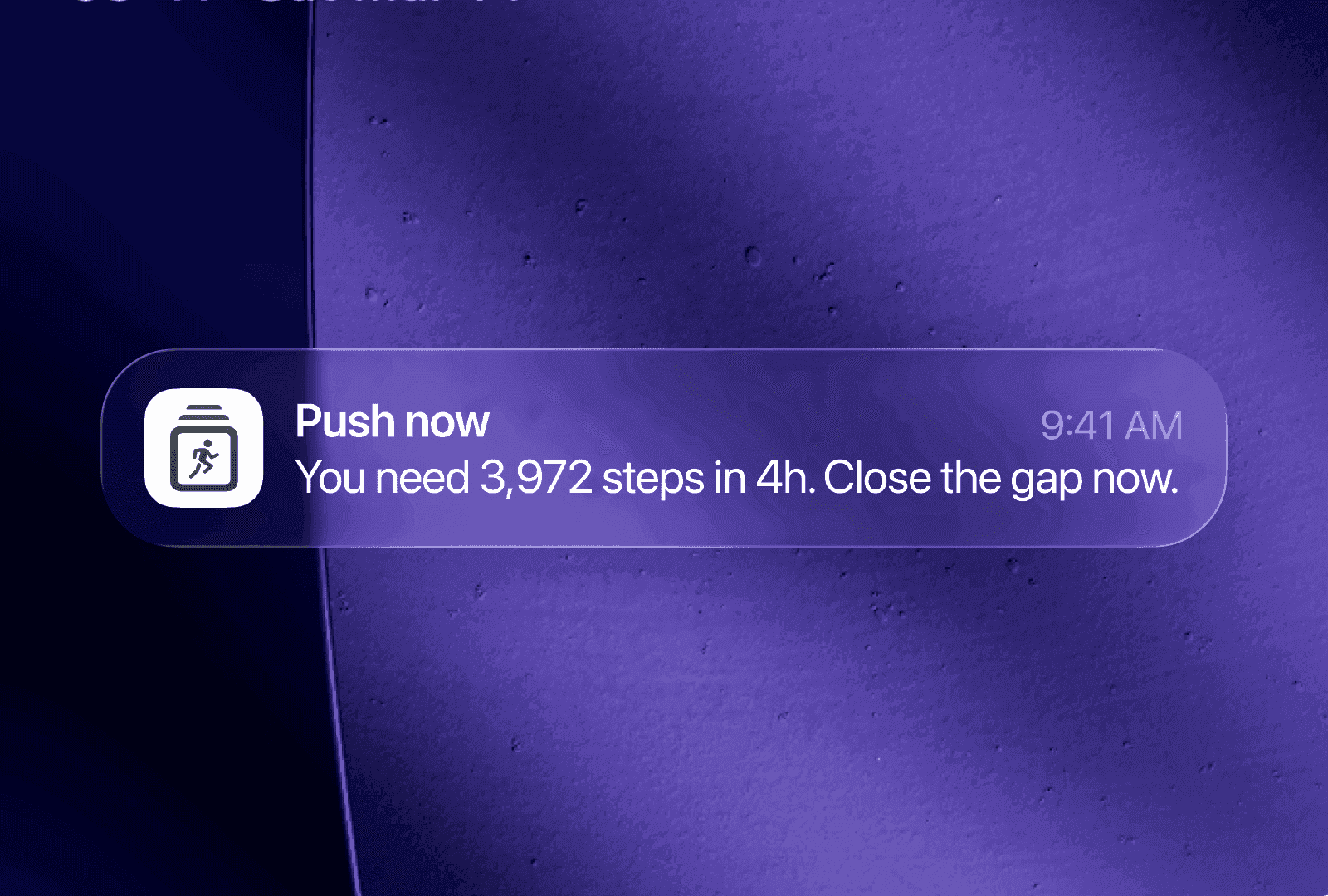
| Push now | Heading for a miss | Take a walk — the message carries how many steps and how long you have |
Two of them arrive as notifications: Push now when the projection says you are heading for a miss, and Goal hit once a day when you cross the line. Strong lead and Steady pace are never sent; they are the line the widgets show under your count, and what Siri adds when you ask for today's steps.
Every one of these titles and messages can be rewritten in your own words — see Reminder messages.
Why it went quiet
A day with no reminders is usually the feature working. In rough order of likelihood:
- You are on track, so there is nothing to say.
- It is outside the reminder window — roughly the 11th to 23rd hour of your day.
- You already had one this hour; that is the limit.
- Another of your devices is the one sending.
- A Focus mode or Do Not Disturb suppressed it.
If none of those fit, work through Reminders not arriving.
Tuning it to your day
Four settings change the behaviour, and all of them are free:
| Setting | What it changes | Reach for it when |
|---|---|---|
| Daily Goal | The target the projection is measured against | Reminders feel too frequent or too rare |
| Start of Day | When your day begins, which slides the reminder window with it | You are regularly up past midnight |
| Local Sunset | Lowers the bar for an evening reminder, tracking real sunset | You want a firmer nudge once it is dark |
| Reminder messages | The wording of every title and message | The phrasing grates, or you want it blunter |
Start with the goal. It is the single most effective lever. Reminders come from the gap between your projection and your goal, so a goal set too high produces a stream of Push now messages you will end up muting, and one you clear by noon produces near-silence. Set your daily goal covers picking a number against a month of your own days.
It is personalised from the start
There is no warm-up period. On first launch the app trains a model on your own step history from Apple Health — up to a year of it — so the projections are shaped by your actual days from the beginning rather than by an average.
The only case that needs patience is a genuinely empty Health history, such as a brand-new iPhone. With nothing to learn from, the app uses its built-in model until your history has something in it.
After that it retrains when your routine changes, not on a schedule. If the pattern for some hour shifts persistently — a new commute, a different gym slot — the app notices, retrains, and tells you which hour moved: "Your 6 PM hour changed — goal reminders are retrained to match." A small dot on the widget marks a retrain as pending and clears itself when it finishes.
Getting better results
- Set a goal you will actually hit on an ordinary day. Everything else follows from this.
- Put a widget where you already look so you can act on a reminder without opening the app — see the widget gallery.
- Wear your Apple Watch if you have one, for delivery and for a fuller step count.
- Do not force-quit the app. iOS then blocks its background refresh until you open it again, which delays the projection along with your widgets.
- Give a changed routine a few days to be recognised before you conclude the timing is wrong.
Why not just remind me hourly?
An hourly timer has no knowledge of what you did. It fires whether or not you walked, so it interrupts you when there is nothing to act on — and reminders like that get muted, which ends their effect entirely.
Forecasting forward also means the reminder arrives while you can still do something. Being told at 10pm that you missed your goal is a record; being told at 4pm that you are heading for 6,000 against a goal of 8,000 still leaves you a choice.
Why does it ask for movement rather than standing?
Standing up satisfies most stand reminders without you having gone anywhere. The app measures steps, so the only way to change the projection is to take some. It does read your Apple Watch stand hours, but only to mark them in the hourly chart as context.
Under the hood
Briefly, for those who want it: a Core ML model reads your last 24 hours of steps and predicts the next hour. The app rolls that forward hour by hour to the end of your day and adds the result to the steps you have already taken — which is why the projection can never come out below your current count. It runs and retrains entirely on your iPhone, and a built-in fallback keeps reminders working if the model is ever unavailable.
The exact thresholds, the reminder window, and how one device is elected to send are in Reminder timing and devices. What the model does and does not keep is in Privacy and sync.
What to read next
- Reminder messages — write the messages in your own words.
- Reminder timing and devices — hours, sunset, and which device sends.
- Reminders not arriving — when nothing fires.
Was this page helpful?
Steps Widget projects your end-of-day step total on device and reminds you only when you are heading for a miss — with your Apple Health count on every screen you already look at.
See how it works