The widget gallery
All eight Steps widgets — Steps Ring, Timeline, Prompt, Goal Progress, Minimal, and the three Lock Screen accessories — plus how adaptive refresh keeps them current.
On this page
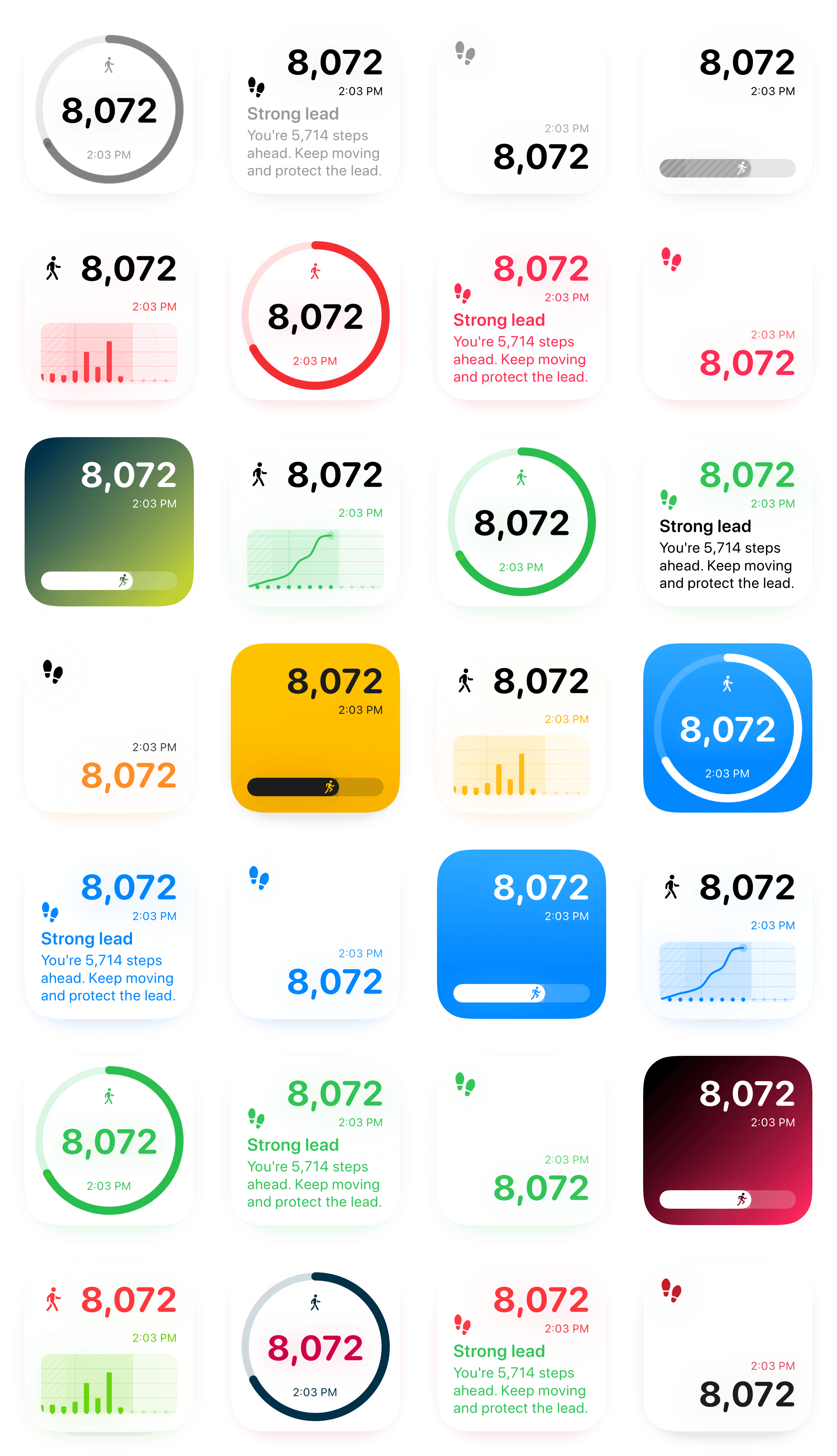
Steps ships eight widgets: five for the Home Screen and three accessory widgets for the Lock Screen and watch-style layouts. They all read the same Apple Health data and the same daily goal, so they never disagree with each other.
Home Screen widgets
| Widget | Sizes | Shows |
|---|---|---|
| Steps Ring | Small | Current steps with goal progress in a ring |
| Steps Timeline | Small | Steps by hour as a compact bar chart |
| Steps Prompt | Small, Medium | Step count with a motivational message |
| Goal Progress | Small | How close you are to today's goal |
| Steps Minimal | Small | A clean, minimal step count |
Steps Timeline shows the shape of the day rather than just the outcome: a flat run of empty bars from 10am to 3pm tells you more than a daily total does. It can also render as a line chart, plotting your running total as a climbing curve whose slope shows your momentum — see Line Chart: the momentum view.
Steps Prompt is the only one with a medium size, because the message needs the room.
Lock Screen and accessory widgets
| Widget | Families | Shows |
|---|---|---|
| Steps Complication | Inline, Circular, Rectangular | Quick step glance in any accessory slot |
| Steps Summary | Rectangular | Compact summary of steps and goal |
| Steps Reminder | Inline | Inline reminder text to stay on track |
The same three families serve the iPhone Lock Screen and Apple Watch complication slots, which is why one widget covers both.
The rectangular layout includes the stand dots: a row of one dot per hour along the bottom of the chart, brighter for the hours you stood. Stand hours come from Apple Watch, so with no Watch paired the row stays dim.
Adding a Home Screen widget
- Touch and hold an empty area of the Home Screen until the icons jiggle.
- Tap Edit, then Add Widget.
- Search for Steps Widget.
- Pick a widget, swipe between its sizes, tap Add Widget.
- Drag it into place, tap Done.
Note: If Steps Widget is missing from the gallery, open the app once. iOS does not offer an app's widgets until it has launched at least once.
Adding a Lock Screen widget
- Touch and hold the Lock Screen until Customize appears, authenticating if asked.
- Tap Customize, then Lock Screen.
- Tap the widget area below the clock.
- Choose Steps Complication, Steps Summary, or Steps Reminder.
- Tap Done, then tap the Lock Screen to save.
Lock Screen widgets are rendered by iOS in a restricted style — small, and limited in how colour is used, so they stay legible over any wallpaper. Your chosen style applies where the platform allows it, which on the Lock Screen is less than on the Home Screen. That is a system rule and applies to every app equally.
Where to put them
Somewhere you already look: the top-left of the first page, or the row above the dock. A small widget in a place you pass often is more useful than a large one on a page you rarely open.
A common setup is Steps Ring in prime position for constant glances, and Steps Timeline somewhere you look occasionally when you want to know where the day went.
Can I add more than one?
As many as you like, in any combination. Each widget remembers its own style and its own display options, so a muted ring on the Home Screen and a bright chart on a second page is a normal configuration — see Styling widgets.
Smart Stacks
Dragging one widget onto another of the same size creates a stack you can swipe through. The app reports a relevance score to iOS so it surfaces itself in a Smart Stack at useful moments — when you have been moving in the last couple of hours, and when you are between 70% and just past your goal.
That said, with Smart Rotate on, iOS decides what is showing when you glance. If seeing your progress reliably is the point, give the widget a dedicated slot.
Adaptive widget updates
Widgets do not refresh on a fixed timer. The app varies how often it asks iOS to redraw, based on how likely the number is to have changed and how likely you are to look at it.
| iPhone | Apple Watch | |
|---|---|---|
| Active | about every 5 minutes | about every 5 minutes |
| Quiet | up to every 30 minutes | up to every 60 minutes |
Three signals push it toward the fast end:
- You are moving now — steps recorded in the current stretch.
- This hour is usually active for you — from a learned profile of your own 24 hours.
- You usually open the app around now — a glance at the widget tends to precede the tap, so those hours are kept fresh too.
It weighs the current hour and the next one, so the widget speeds up ahead of your usual walk rather than catching up after it. Everything is measured against your own busiest hour rather than an absolute, so a generally quiet day still gets its fast periods.
The Watch has the wider range because its refresh budget is tighter. Spending less on quiet stretches leaves more for the moments you actually raise your wrist.
Note: These are requests, not guarantees — iOS grants widget reloads from a daily budget and can delay any of them to save power. The app also skips reloads that would change nothing visible: a redraw needs at least 200 steps of change and at least 60 seconds since the last one.
Can I put the widget on my Mac?
Yes, and it is a good place for it if you work at a desk. The Mac is the screen you are already looking at, so a progress ring at the edge of it keeps your step count visible without reaching for your phone.
There is no Mac app to install. On macOS Sonoma or later the Mac borrows the widget from your iPhone over Continuity:
- Sign the Mac and iPhone into the same Apple Account, and keep the iPhone nearby or on the same network.
- On the Mac, open System Settings › Desktop & Dock and scroll to Widgets.
- Turn on Use iPhone widgets.
- Right-click the desktop, choose Edit Widgets, find Steps Widget, and drag one out.
Moving and removing
Touch and hold a widget to drag it. Touch and hold and choose Remove Widget to delete it. Removing a widget does nothing to your data — your steps are in Apple Health, and the widget is only a window onto them.
What to read next
- Styling widgets — colours, charts, timestamps, and the subscription.
- Styles from a photo — your own picture as a palette or a background.
- Motion Sensor — a live count while you walk.
- Widget not updating — when the number is stale.
Was this page helpful?
Steps Widget projects your end-of-day step total on device and reminds you only when you are heading for a miss — with your Apple Health count on every screen you already look at.
See how it works