Walking is easier with company. A friend inviting you for a walk gets more people off the sofa than any reminder ever will. The trouble is that most ways of sharing steps were built for competing, not for keeping each other company: leaderboards, badges, a feed of strangers, an account to make before any of it works.
Walk with a friend is the opposite. You invite one person, they invite you back, and from then on you can see each other's day, side by side, right on your Home Screen.
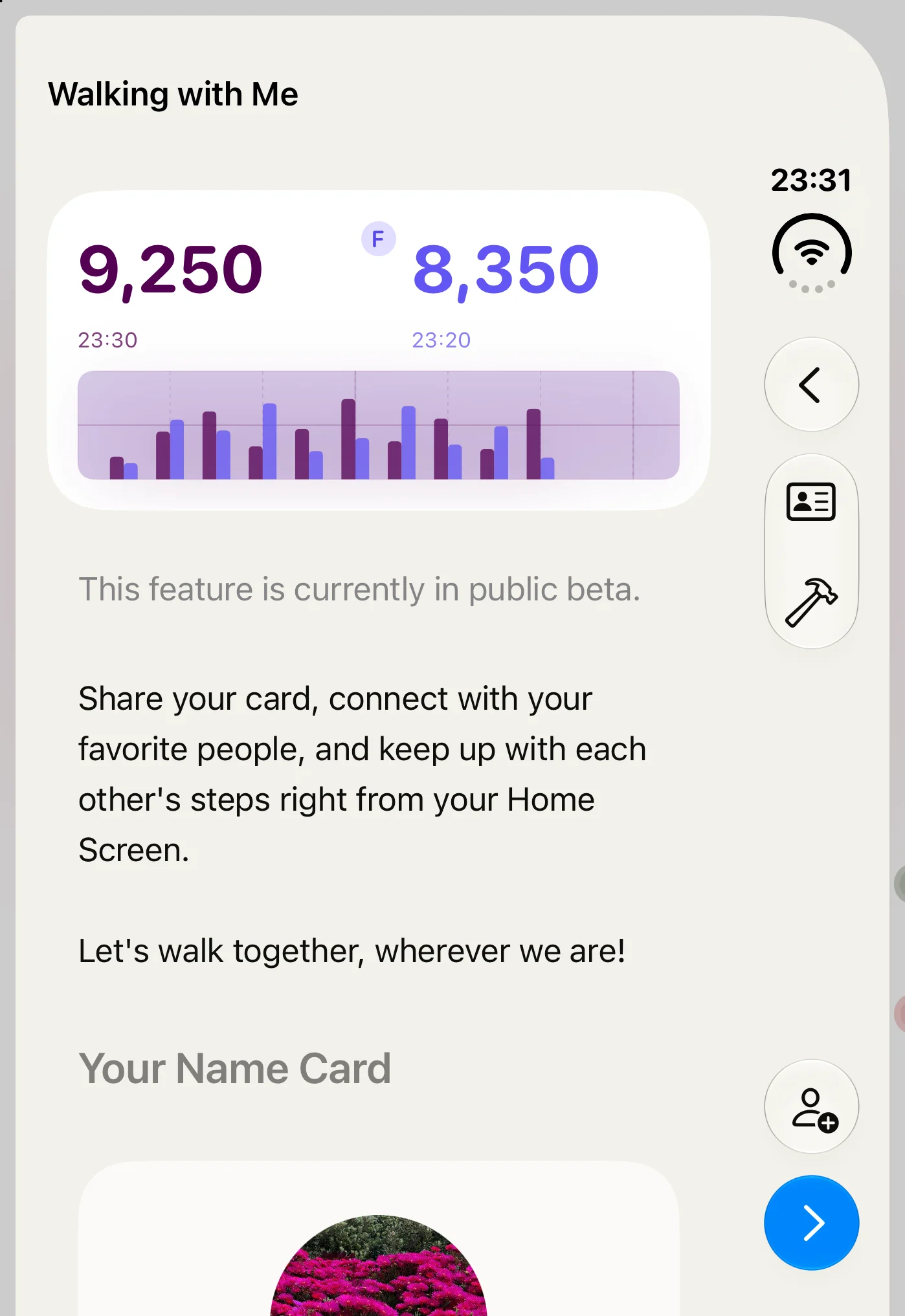
At a glance
- Only people you choose, both ways. Sharing only starts when you've both said yes.
- Each other's day, hour by hour. Steps and stand hours, in a chart that lines up even across time zones.
- On your Home Screen. The medium Side by Side widget puts the two of you next to each other.
- No account, no feed, no leaderboard. Everything is sealed on your iPhone before it leaves.
Why side by side, and not a ranking
A ranking answers one question: who walked more? That is fun for a day and tiring after a week, and the person at the bottom is usually the one who needed the encouragement most.
Side by side answers a gentler question: how is their day going? Seeing that your sister has been at her desk since nine, or that your partner already did the school run on foot, is a reason to message them, or to go for a walk yourself. Nobody wins, and nobody is told they lost.
Make your card
Your card is how friends recognise you. Tap the Side by Side icon on the app's home screen, add your name under Your Name Card, and choose a look: a photo, a quick snap with the camera, an emoji, or your initials on a colour.
You can change it any time, and friends you're connected with see the update.
Connect, nearby or miles apart
- Together in person? Both of you tap See Who's Nearby. Your cards appear on each other's phones; tap Add on theirs, they tap Add on yours, and you're connected.
- Miles apart? Tap Share My Card and send it however you like: Messages, Mail or your usual chat app. When your friend opens it, you get a request. Accept it, and you're walking together.
- Don't have the app yet? The link opens a page with the App Store download. Install it, open the card again, and you're in.
Sharing always goes both ways, and nothing is shared until you've both agreed.
See each other's day
Once you're connected, your friend appears in the list with a chart of their day. Pull down to refresh, or tap the ⋯ menu to ask for an update.
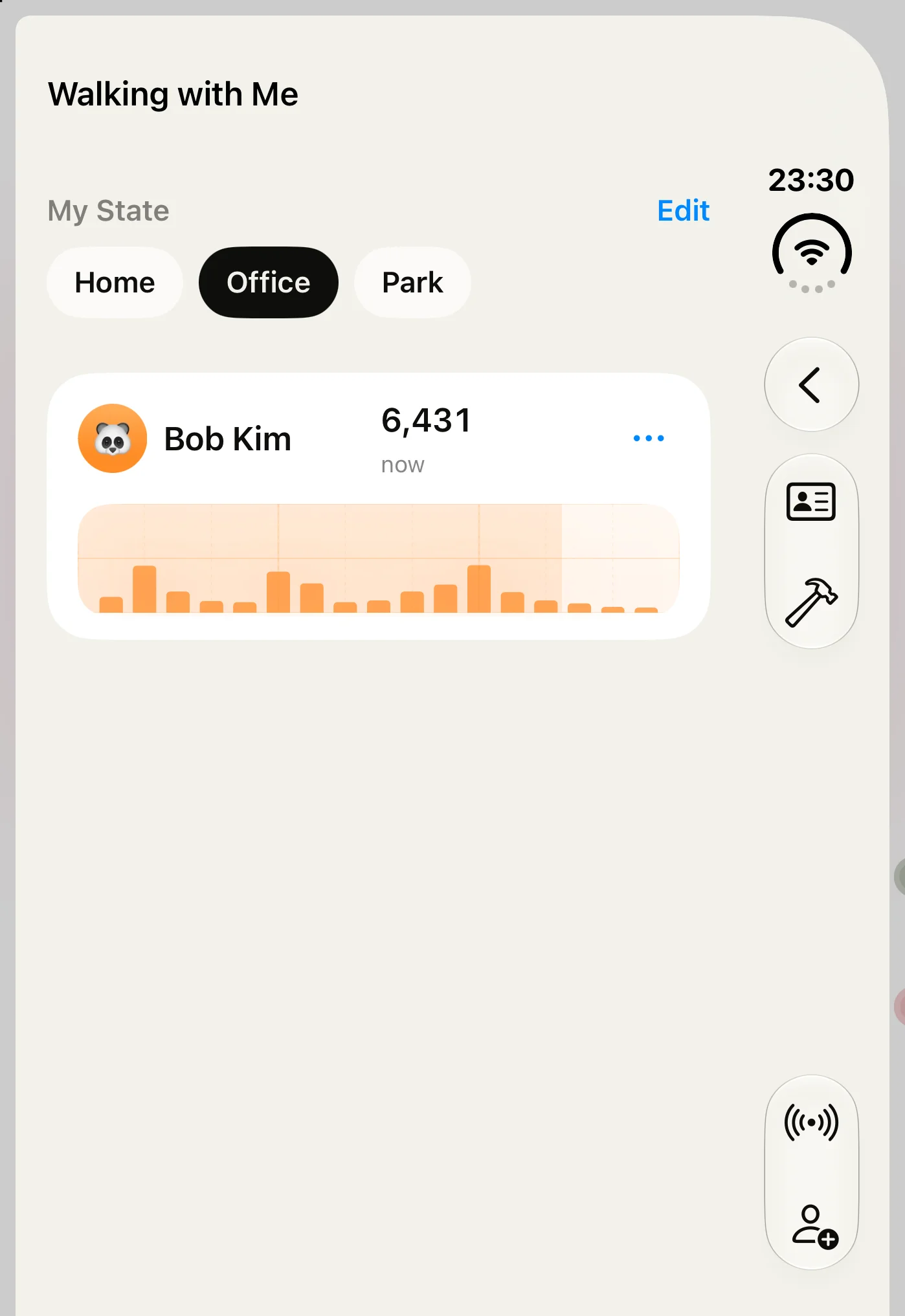
Each chart follows its owner's own day, so a friend in another time zone lines up hour for hour instead of looking like they slept through your morning. If their latest steps are from before your day started, the chart says so rather than showing a misleading zero.
Put the two of you on your Home Screen
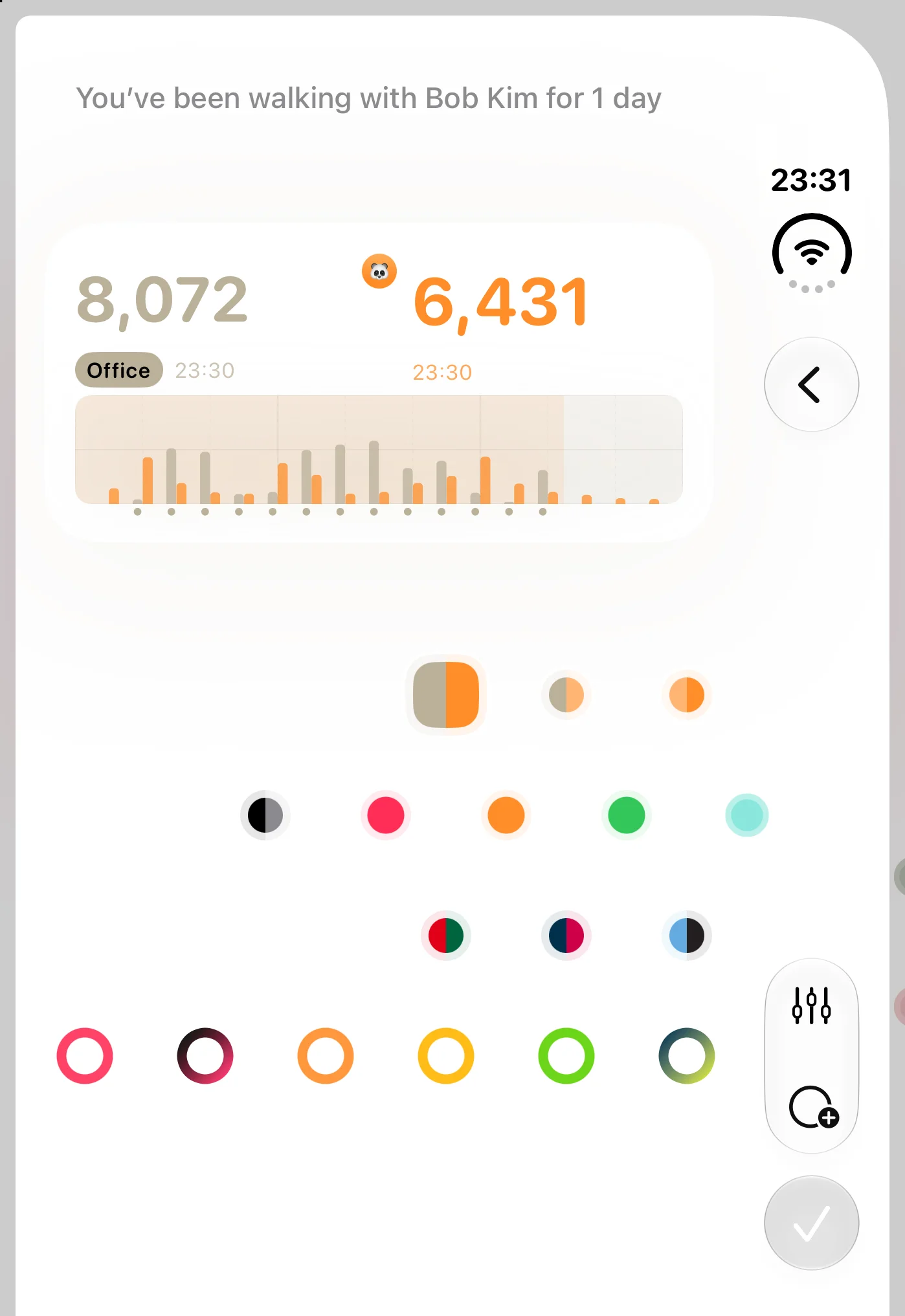
The medium Side by Side widget shows your day next to your friend's. Add it like any other widget, then touch and hold it, tap Edit Widget, and choose who to pair with.
By default it takes its colours from your two pictures. Tap a friend's chart in the app to pick your own, with a separate set for Dark Mode if you like.
Let them know where you are
Under My State, pick where you are right now, like Home, Office or Park. Your friend sees it next to your name, and you see theirs. Tap Edit to make the list your own.
On the widget, tap your state to move to the next one without opening the app. It is a small thing, but "Park" next to a rising line says more than a message would.
Private by design
Sharing your steps should feel like walking with a friend, not posting to the world.
- Nobody can find you. There's no public profile, no search and no leaderboard. The only way in is your card, and only once you've both said yes.
- Sealed on your iPhone. Everything you share is sealed before it leaves, and only your friend's phone can open it. Our service just passes the sealed messages along. It can't see your steps, your name, your picture, or where you are.
- Only what's needed. Your friend sees today's steps hour by hour, your stand hours, your name and picture, and the state you pick. Your Health history, your goal, your location and your other settings never leave your device.
- No account. No sign-up and no password. The app uses your App Store purchase to identify you, and your list of friends lives in your own iCloud.
Private by design has the full picture.
Take a break, or say goodbye
Tap the ⋯ menu on a friend's card. Stop Sharing pauses everything in both directions while keeping their card, so you can tap Start Sharing whenever you're ready again. Delete removes them from your list; they're told, and they decide what to do with yours.
Frequently asked questions
Do both of us need Steps Widget? Yes. Your friend needs the app to see your day and share theirs. If they open your card without it, the link takes them to the App Store.
Can strangers find me or see my steps? No. There is no search, no public profile and no leaderboard. Only people you've connected with, and who you've accepted, can see what you share.
Can you see my steps? No. Everything is sealed on your iPhone before it leaves, and only your friend's phone can open it.
Does my friend see my step goal or my Health history? No. They see today's steps hour by hour, your stand hours, your name and picture, and the state you pick. Nothing else leaves your device.
What if my friend lives in another time zone? Each chart follows its owner's own day, so their morning lines up with their morning, not yours.
How do I stop sharing? Tap the ⋯ menu on their card and choose Stop Sharing to pause, or Delete to remove them.
Try it
Make your card, send it to the person you'd most like to walk with, and put the two of you on your Home Screen. The full steps are in Walk with a friend.
Recommended posts
Try Steps Widget
Keep your daily steps visible on iPhone, Lock Screen, Home Screen, and Apple Watch with a private Apple Health step counter widget.