iPhone Duo is two screens in one. Folded, its 5.4-inch outer display is a compact phone. Open, the 7.6-inch inner display is closer to a small tablet, with a fold running down the middle. And in between, half-open like a book, it is something no iPhone has been before.
Steps Widget is an app you open for seconds at a time: check the day, change a widget's style, glance at a reminder. On a device that changes shape in your hand, those seconds have to feel right in every pose. Stretching the phone layout across the big screen would have worked, technically. It would not have felt like it belonged.
Fold and unfold the phone below to see where we landed.
At a glance
- Folded: it's tiny, I extend the content to make the most of the horizontal space.
- Open: In this mode, you can look at all color palettes at once. Settings and the photo style editor become two pages.
- Half-folded: nothing important sits on the crease, including sheets and confirmation dialogs.
Folded: a phone with a side bar
On iPhone Duo, toolbars can leave the top and bottom of the screen and gather in a single vertical bar along the hardware edge, next to the clock and the camera. It gives the content the full height of the display, which matters on a screen this wide and short.
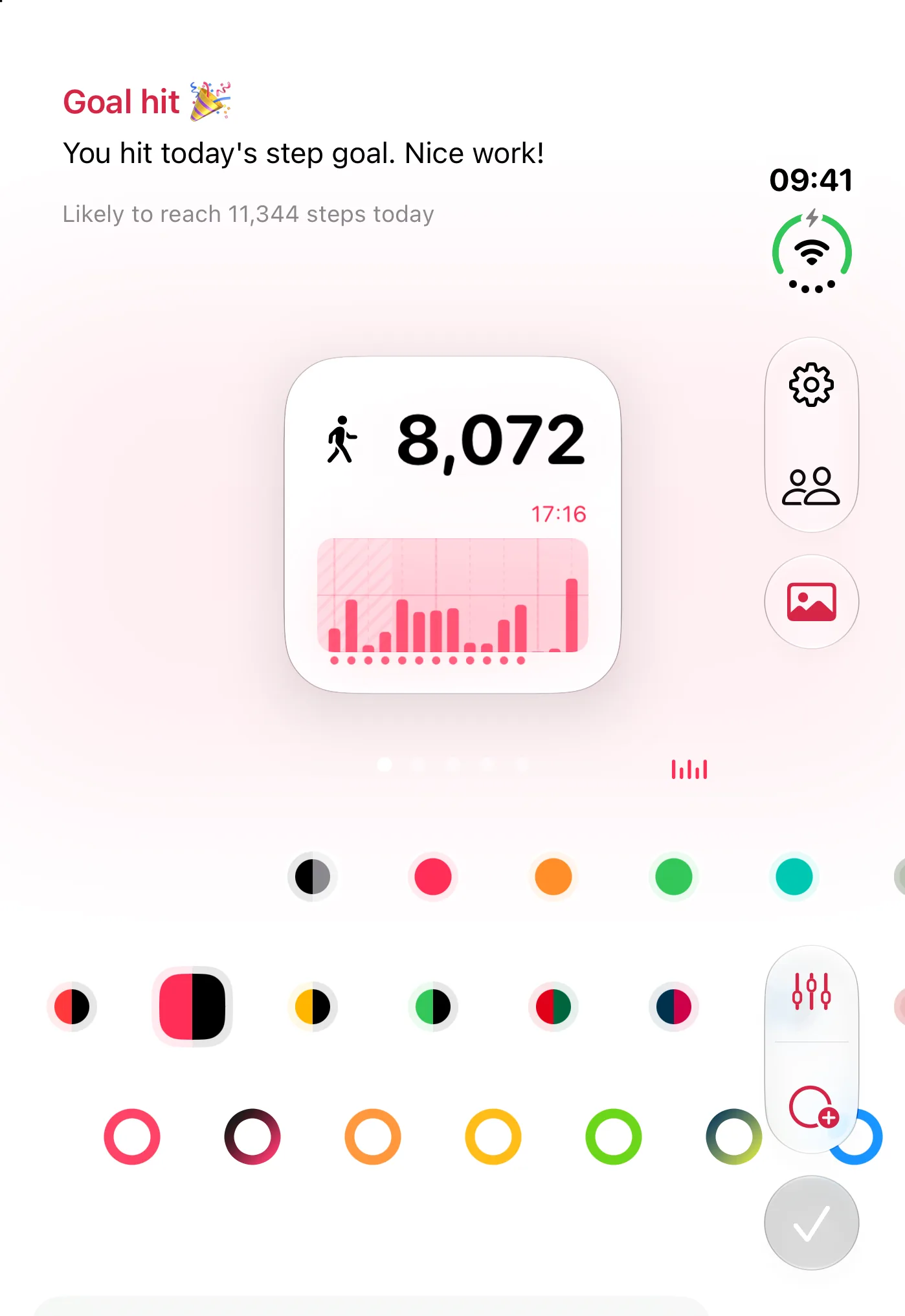
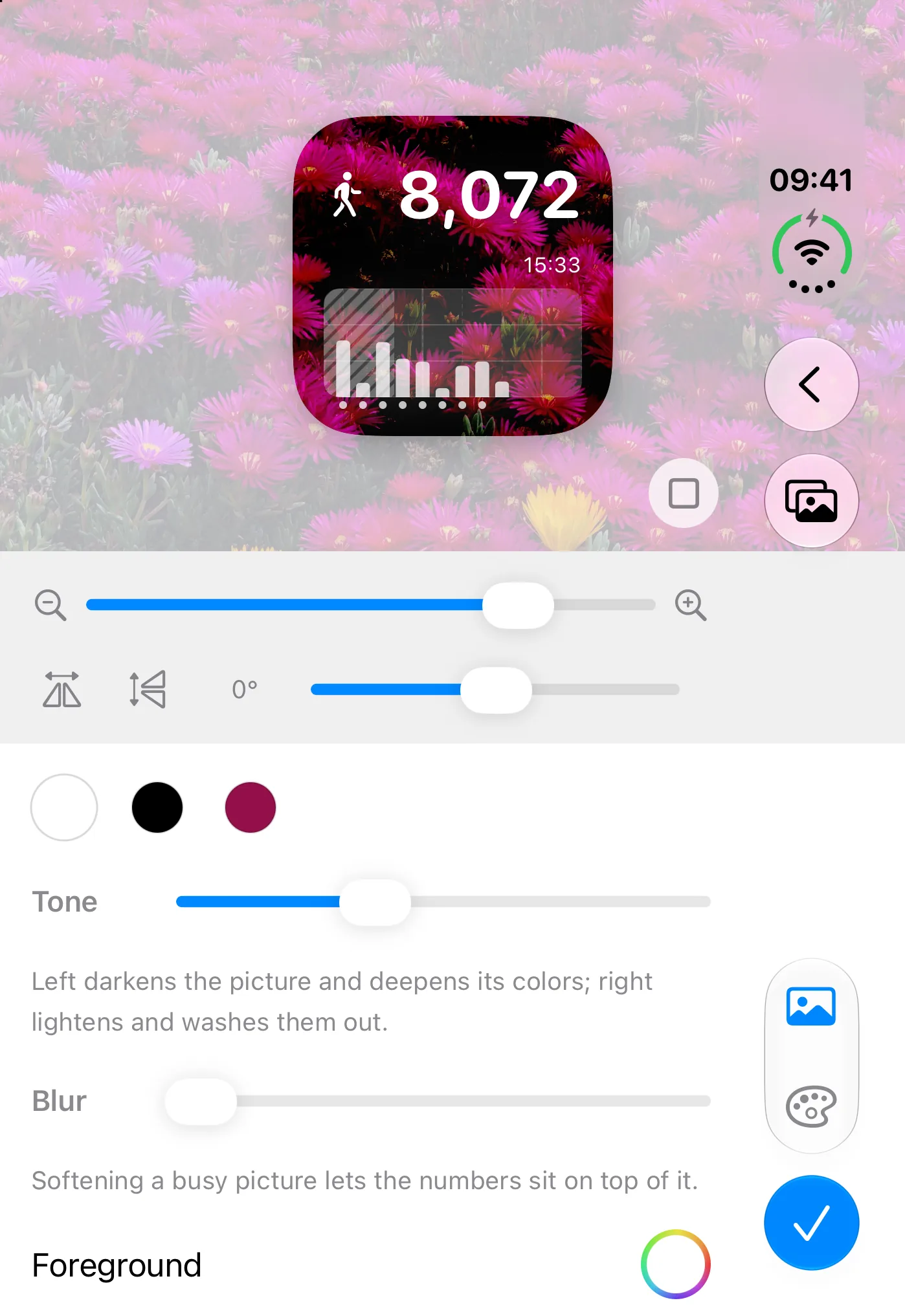
Most of our controls moved there without any work: Settings, sharing, the photo style button, and Save. The rest needed attention.
- The style menu and its divider used to sit side by side. In the vertical bar they now stack, with the divider turning horizontal, so the group still reads as one unit.
- Reset only appears after you change a style. We asked the system to prefer the side bar for it, so it appears in the same column as Save instead of somewhere unexpected.
- The photo style editor's tabs move into the bar as well, and switching between Colors Palette and Background now slides the content up and down instead of sideways, to follow the direction the tabs are laid out in.
Open: not just a bigger page
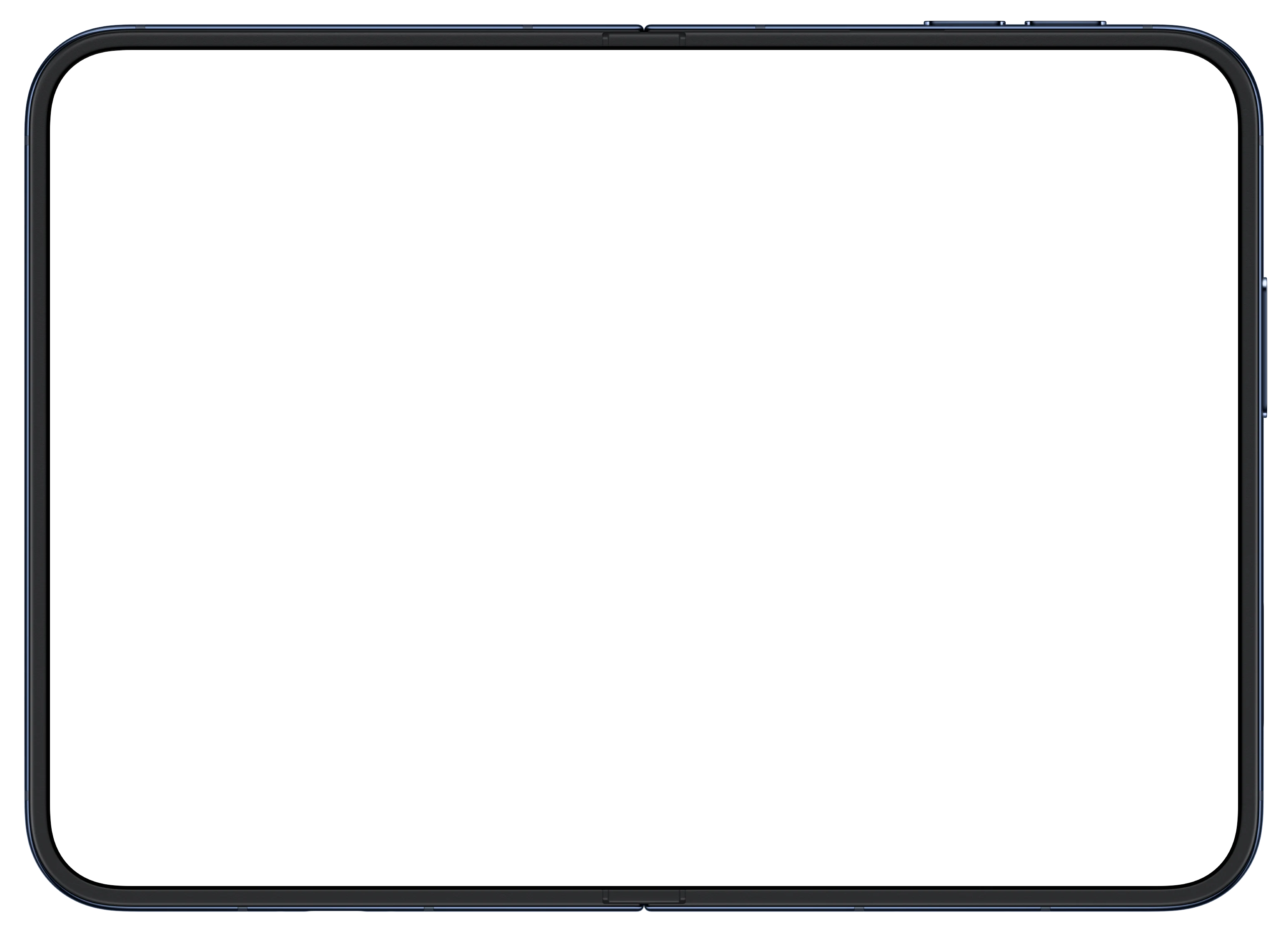
When you open iPhone Duo, the fold runs straight through the middle of the screen. We treat it as a gutter between two pages rather than a line across one big canvas, and each screen in the app decides what belongs on each side.
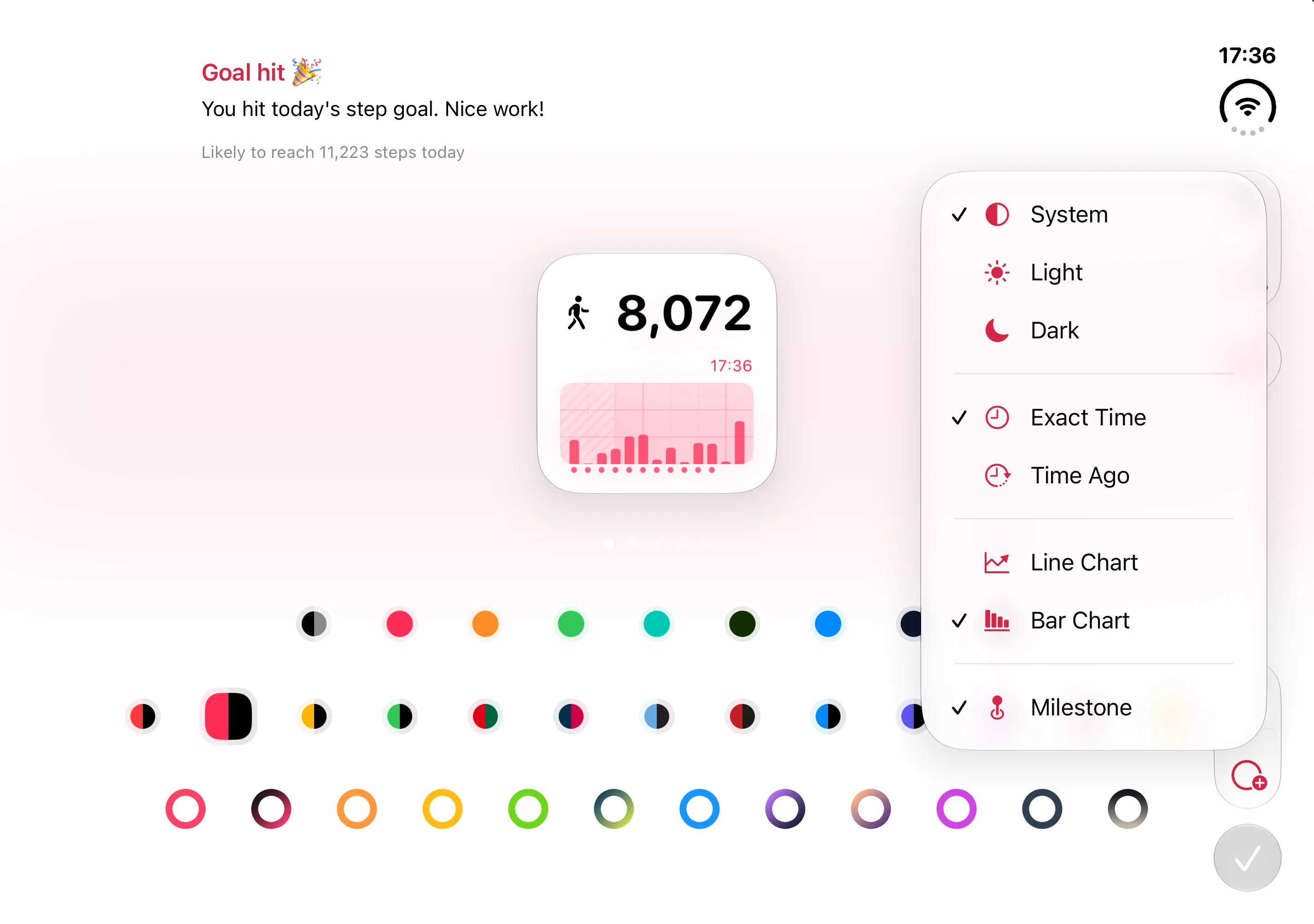
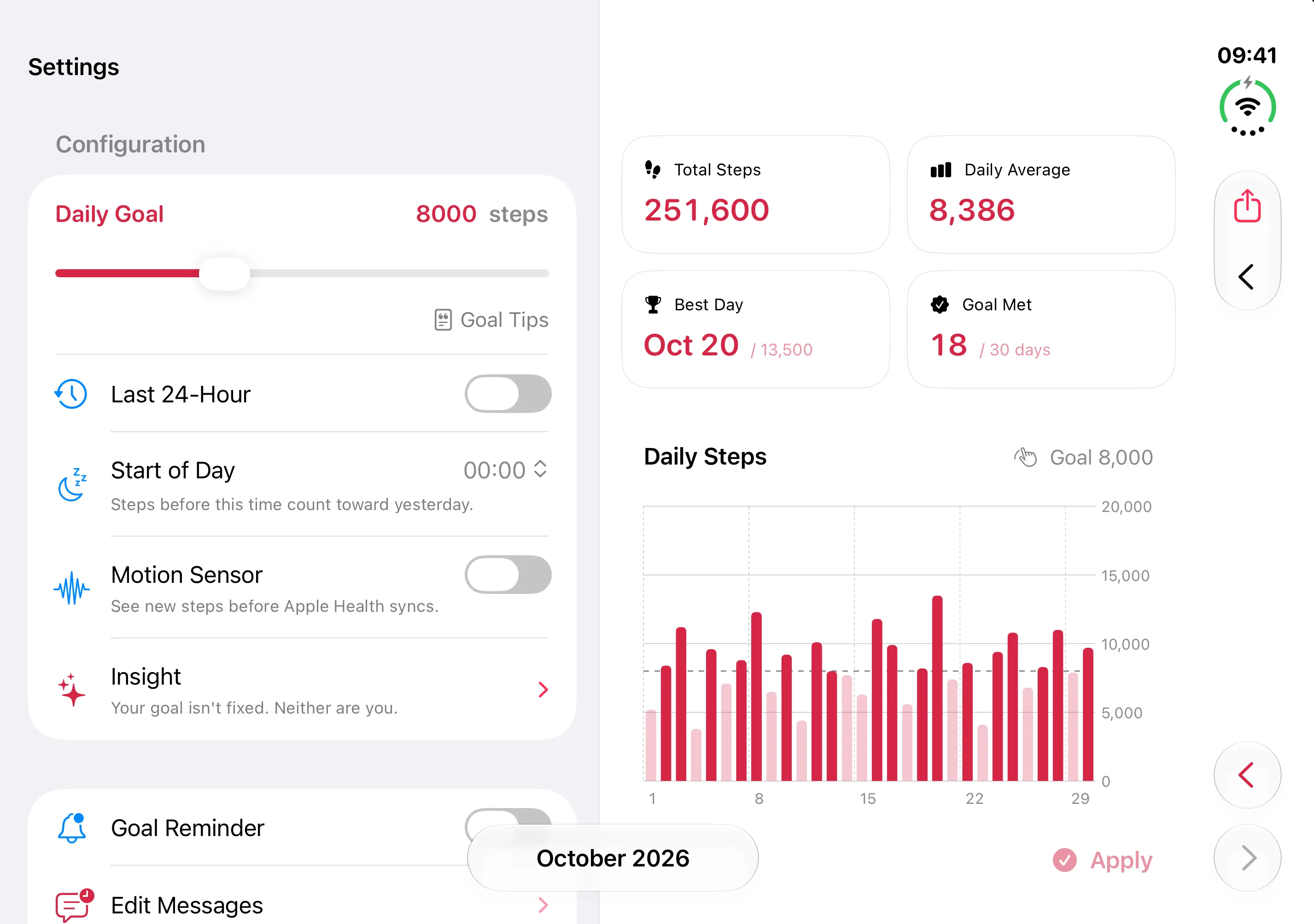
- Home: the one screen that stays whole. Your widget preview sits in the middle with every style laid out in rows below it, and the appearance, time and chart options open as a menu from the side bar.
- Settings: the settings list stays on the left and whatever you open from it, like Insight, reminder messages or the app icon, appears on the right. The two columns meet exactly at the fold.
- Photo styles: the preview of your widget on one page, the palettes, tone, blur and colour controls on the other. You can drag the picture into place and see the result without anything covering it.
The pages are not a fixed fifty-fifty split I hard-coded. The app reads where the fold actually is and sizes the first column to end there, so the layout lines up with the hardware rather than with a guess.
Sheets, dialogs and the crease
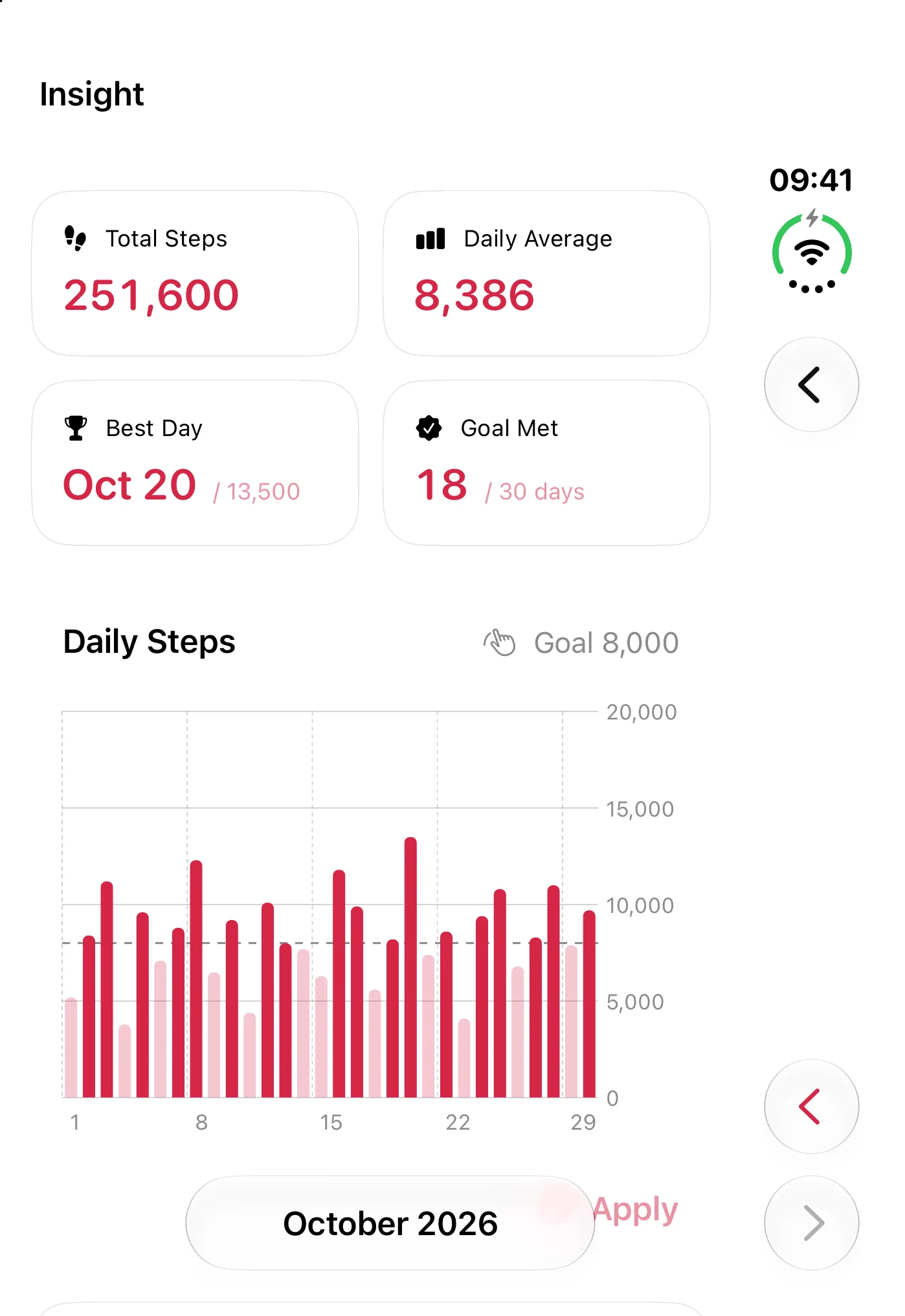
When iPhone Duo is half-folded, the system moves sheets and alerts entirely onto one half, so they never bend over the crease. By default that is the left half.
That is the right instinct, but it was not always the right half for us. In Insight, the month selector sits at the bottom of the screen. When the phone is half-folded we move it onto the right page, and the month picker it opens now appears on the same side, right where your finger already is.
My confirmation dialogs, the cards that ask whether to save or discard your changes, follow the same rule as the system's: they rise on one page and stay there.
I also changed how the photo style editor opens. As a sheet on the open display it became a small card floating in the middle of the screen, cut off from the side bar. It now opens full screen, so it gets the same bar and the same two-page layout as the rest of the app.
Built a system, not on device type
Some of this work was invisible. How to keep the navigation structure consistent while adapting to different fold states was a subtle challenge that required rethinking the layout logic from the ground up. How to keep the same hierarchy and flow across different fold states was equally important. I'm creating a system that holds the content differently instead of modifying the content itself.
For developers
If you are adapting your own app, these were the pieces that did the most work for us, all new in the iOS 27.1 SDK:
onHingeChangetells you when the device opens, closes or goes half-folded.- Reserved regions of kind
.divisiongive you the fold's position, so a column can end exactly at it. axisBehavior(.verticalPreferred)on a toolbar item, and thetoolbarVerticalEdgeenvironment value, let custom toolbar content adapt to the vertical bar.presentationPlacementchooses which side a sheet appears on.
.onHingeChange { _, context in
  isOpen = context.hinge.map { $0.status != .closed }
}
Our main lesson: design each screen as two halves first, then check that it still works as one. It is much easier than taking a single-column layout and deciding where to cut it.
Does Steps Widget support iPhone Duo?
Yes. Steps Widget adapts to the folded outer display, the open inner display, and the half-folded book posture, and keeps your place when you fold or unfold the phone in the middle of a task.
Does Steps Widget work when iPhone Duo is half-folded?
Yes. In the half-folded book posture each screen splits into two pages at the fold, and sheets and dialogs stay on one page so nothing bends over the crease.
Recommended posts
Try Steps Widget
Keep your daily steps visible on iPhone, Lock Screen, Home Screen, and Apple Watch with a private Apple Health step counter widget.