
Short answer: iOS has no built-in widget that shows your numeric step count. Install a free step counter app that reads Apple Health, then add it as a Home Screen widget, a Lock Screen widget, and an Apple Watch complication. The whole setup takes about five minutes and costs nothing.
Apple tracks your steps continuously on both your iPhone and your Apple Watch, but it never puts the number in front of you. The built-in Fitness and Activity widgets only show the three rings — Move (active calories), Exercise, and Stand. If you want to see 8,072 steps rather than a partially closed red circle, you need a third-party app that connects to Apple Health and ships iOS widgets and watchOS complications — see how an Apple Health steps widget works.
Here is how to set that up on every screen, plus the best genuinely free apps to do it with — no subscriptions, no ads, no account.
In this guide:
- The best free apps, compared
- Add steps to your Home Screen
- Add steps to your Lock Screen
- Add steps to your Apple Watch face
- Add steps to StandBy mode
- App reviews
- Fix a step count that is not updating
- FAQ
Best Free Apps to Show Step Counts at a Glance
Not all step apps treat free users equally. Some lock watch complications behind a monthly paywall, others put a banner ad above your step count. The table below compares the options worth installing in 2026:
| App | Free Tier Highlights | Ads | Home Screen | Lock Screen | Apple Watch Face | StandBy Mode | Privacy / Account |
|---|---|---|---|---|---|---|---|
| Steps Widget | 100% free core functionality & goal-projection reminders | None | Yes (Small, Med, Large) | Yes (Inline, Circular, Rectangular) | Yes (Multiple complication styles) | Yes | 100% On-device, No account needed |
| Duffy | Lightweight step counter with Apple Watch complications | None | Yes | Yes | Yes (Minimal numeric / ring) | Limited | On-device, No account needed |
| Pedometer++ | Detailed step tracking, badges, and streaks | Yes (in free tier) | Yes | Yes | Yes | Limited | On-device, No account needed |
| Widgetsmith | Highly customizable aesthetics and fonts | Free with optional upgrade | Yes | Yes | Limited | Yes | On-device, No account needed |
Whichever you choose, the setup steps below are identical — every one of these apps registers itself with WidgetKit the same way. If you want a deeper look at the field, we ranked the options in the best iOS widgets for privacy-first fitness tracking.
How to Add Step Count to Your iPhone Home Screen
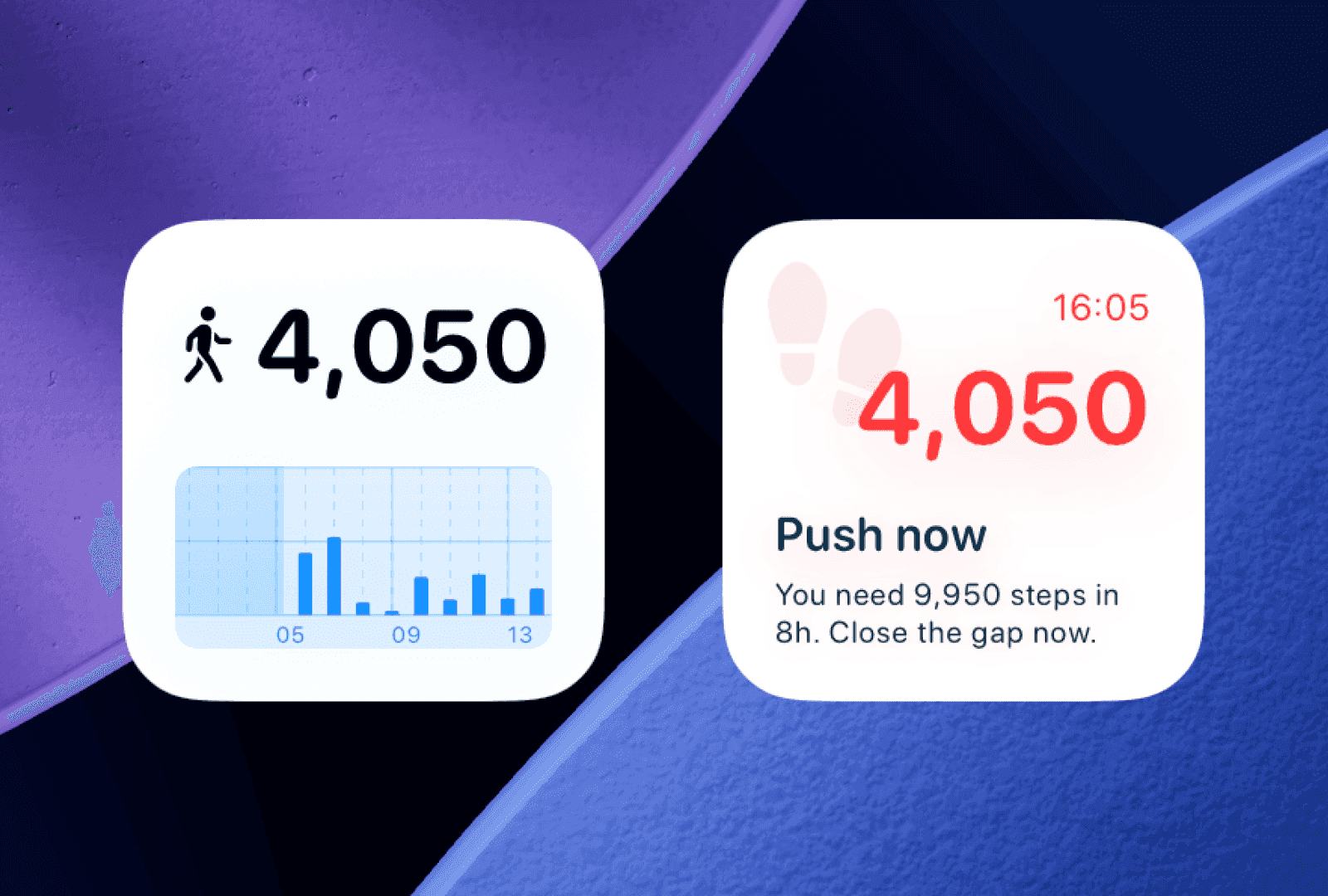
Adding a step counter widget to your Home Screen gives you the number every time you unlock your phone — which, for most people, is the difference between noticing a 3,000-step day at lunchtime and noticing it at bedtime.
Step-by-Step Setup:
- Download your chosen step app (such as Steps Widget or Duffy) from the App Store and open it once to grant Apple Health permission.
- Go to your iPhone Home Screen.
- Touch and hold any empty area on your screen until the app icons start jiggling.
- Tap the + (Add) button in the top corner (top-left or top-right depending on your iOS version).
- Scroll through the widget gallery or use the search bar to find your step counter app (e.g., Steps Widget).
- Swipe left and right to choose your preferred widget size:
- Small (2x2): Displays your current step count and a compact goal progress ring.
- Medium (4x2): Adds daily progress bars, distance, or hourly activity breakdowns.
- Large (4x4): Shows a full hourly walking chart and comprehensive daily stats.
- Tap Add Widget, position it where you want on your Home Screen grid, and tap Done.
Tip: You can stack multiple widgets together by dragging one widget on top of another. This lets you swipe between your step counter, calendar, and weather without taking up extra screen real estate.
Placement matters more than size. Put the widget on your first Home Screen page, near the apps you open reflexively — a step count on page three is a step count you never see. For a closer look at the widget styles and layouts available, see our guide to the best step counter widget for iPhone, or match the widget's colors to your wallpaper with iOS tinted widgets.
How to Add Step Count to Your iPhone Lock Screen
With iOS 16 and later (including iOS 17, iOS 18, and iOS 26), you can check your walking progress without unlocking your iPhone at all. Lock Screen widgets live in two places: above the clock (inline) and below the clock (rectangular or circular).
Step-by-Step Setup:
- Wake your iPhone and unlock it with Face ID or Touch ID, but do not swipe up to the Home Screen — stay on the Lock Screen.
- Press and hold the Lock Screen until the wallpaper gallery appears, then tap Customize at the bottom.
- Select the Lock Screen preview on the left.
- Choose your widget slot:
- Above the Clock (Inline): Tap the date banner above the time. Scroll to find your step app and select the inline step counter to show your steps right next to the date.
- Below the Clock: Tap the rectangular widget box under the clock. Select your step app from the menu. You can add up to four circular widgets or two rectangular widgets (or a combination).
- Tap the widget in the preview if you want to configure specific display preferences (such as showing raw steps or percentage of your daily goal).
- Tap outside the widget editor, then tap Done in the top-right corner to save.
The inline slot is the one to prioritize. It costs you no widget real estate, sits directly beside the date, and appears on the Always-On display — so on an iPhone 14 Pro or later, your step count is visible on a desk without you touching anything. Our dedicated walkthrough covers the slot-by-slot trade-offs in more detail: how to show steps on your iPhone Lock Screen.
How to Show Step Count on Your Apple Watch Face
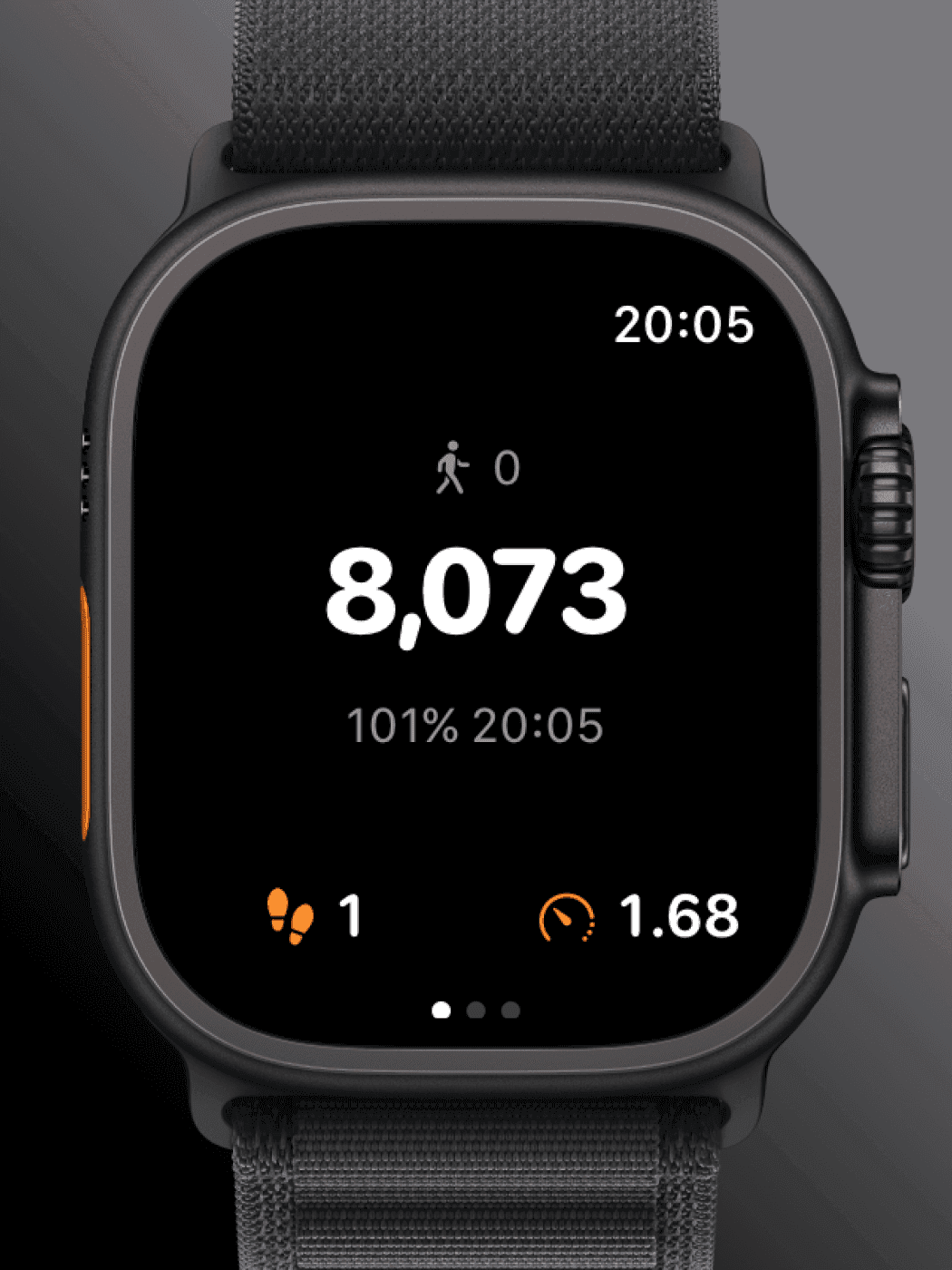
The Apple Watch counts steps automatically with its built-in accelerometer, but the native Activity complication shows only the Move/Exercise/Stand rings. To get the actual number on your wrist, add a step complication from a free third-party app.
Method A: Directly on Your Apple Watch
- Make sure your step counter app (e.g., Steps Widget or Duffy) is installed on your Apple Watch. (Open the Watch app on your iPhone > My Watch > scroll down to Available Apps and tap Install if needed).
- Open the app on your Apple Watch at least once to ensure background permissions are active.
- Return to your watch face and press and hold the display until the watch face customizer appears.
- Tap Edit, then swipe left to the Complications customization screen.
- Tap the complication slot where you want your steps displayed (large center slots or sub-dial corner slots work best).
- Turn the Digital Crown to scroll to your step app and choose your preferred complication style (numeric count, progress ring, or text badge).
- Press the Digital Crown twice to save and return to your watch face.
Method B: Using the iPhone Watch App
- Open the Watch app on your iPhone.
- In the My Watch tab, tap your active watch face under the My Faces section.
- Under Complications, select the slot you want to customize (e.g., Bottom Left, Middle, or Sub-dial Top).
- Scroll down to your step app, select the complication format you prefer, and exit to automatically sync changes to your watch.
Best Watch Faces for Step Counters: Watch faces like Modular, Modular Ultra, Infograph, Metropolitan, and Activity Digital offer generous complication slots that make step counts easy to read at an arm's glance.
Two things worth knowing once it is on your wrist. First, your Watch and iPhone both count steps, and Apple Health de-duplicates them — you are not double-counting, but the totals can differ from what you expect, which we unpack in Apple Watch steps accuracy and its limitations. Second, if you want the daily and weekly history behind the complication, see how to view and track Apple Watch steps daily.
How to Show Steps in StandBy Mode
StandBy is the landscape screen iOS shows when your iPhone is charging on its side — effectively a bedside or desk clock. It also accepts widgets, which makes it the fourth surface worth claiming.
- Charge your iPhone on its side (MagSafe or a stand) with Settings > StandBy turned on.
- Swipe to the widget panel, then touch and hold it and authenticate.
- Tap +, choose your step counter app, and select a widget size.
Because StandBy runs for hours at a time on a desk, it is the one surface where your step count is genuinely ambient. Full details in how to show your steps in iOS StandBy mode.
Detailed Review of the Best Free Step Counter Apps
1. Steps Widget by CrazyLazy (Best Overall & Privacy-First)
Steps Widget is built for people who want clean step tracking on every iOS surface without subscriptions, accounts, or advertisements.
- Why it stands out: Unlike most fitness apps that push you toward a subscription or a social feed, Steps Widget processes everything locally using Apple Health. The core tracking, every widget placement (Home Screen, Lock Screen, StandBy), and the Apple Watch complications are all free.
- Goal reminders that read the day, not the clock: Rather than firing on a fixed timer, Steps Widget runs a small on-device model that projects the step count you are heading for and notifies you only when that forecast falls short of your daily goal. On days you are already walking enough, it stays quiet. See how goal reminders work.
- Visuals: Fully supports modern iOS styling, including tinted widgets, dark/light modes, and Liquid Glass aesthetics.
- Trade-offs: It is deliberately narrow. There are no workout maps, routes, or GPS tracking — if you want hiking features, Pedometer++ is the better fit.
2. Duffy (Best for Pure Apple Watch Simplicity)
Duffy is an independent, no-frills pedometer that focuses on doing one thing well: putting your step count on your wrist.
- Why it stands out: A clean, uncluttered interface that reads directly from Apple Health. Its Apple Watch complications are lightweight, update reliably, and cover almost every watch face slot.
- Trade-offs: Simpler visual design and fewer widget customization options than a dedicated widget styling app.
3. Pedometer++ (Best for Historical Data and Long Hikes)
Developed by David Smith, Pedometer++ has been a staple of iOS step counting for over a decade.
- Why it stands out: The free version provides solid Home Screen and Lock Screen widgets, daily streak tracking, motivational badges, and Apple Watch complications.
- Trade-offs: The free tier carries third-party ad banners inside the app, and advanced features like offline GPS hiking maps and Expedition Mode require a subscription. We put the two head to head in Steps Widget vs Pedometer++.
4. Widgetsmith (Best for Aesthetic Customization)
Widgetsmith lets you design your own widgets from scratch.
- Why it stands out: If you want custom fonts, specific background colors, border styles, and themes that match your wallpaper, Widgetsmith lets you build a bespoke step counter widget for your Home and Lock screens.
- Trade-offs: Setup takes several steps because you are assembling the widget layout manually, and it lacks fitness-specific features such as goal-based step reminders.
Why Is My Step Count Not Updating?
If your widget or complication shows dashes, sits blank, or lags behind your actual activity, it is almost always one of four things: Apple Health permission was never granted, iOS is throttling the widget's refresh budget, Background App Refresh is switched off, or the app is not installed on your Apple Watch. Work through the checks below in that order and the count will come back.
1. Check Apple Health Permissions
Third-party widgets cannot see your steps unless HealthKit permission is explicitly enabled:
- Open the Settings app on your iPhone.
- Scroll down and tap Privacy & Security > Health.
- Tap your step counter app (e.g., Steps Widget).
- Ensure that Steps (and any other relevant metrics) are toggled ON.
2. Understand iOS WidgetKit Refresh Timing
iOS manages widget refresh budgets to protect your iPhone and Apple Watch battery life. Widgets do not update on every individual step like a stopwatch; instead, iOS refreshes widget timelines periodically throughout the day. Opening the app for a moment immediately triggers a fresh background sync.
3. Ensure Background App Refresh Is Enabled
- Go to Settings > General > Background App Refresh.
- Make sure the main toggle is ON, and verify that your step app is toggled ON in the list.
4. Confirm the App Is Installed on Apple Watch
If the complication is missing from your watch face picker:
- Open the Watch app on your iPhone.
- Scroll down to the Available Apps list on the My Watch tab.
- If your app is listed under Available Apps, tap Install to push it to the watch. Once installed, open the app once on your watch.
If the count is wrong everywhere — in the Health app itself, not just in the widget — the problem is upstream of any widget. Start with why your iPhone is not counting steps instead.
Frequently Asked Questions
Can I see my steps on the iPhone Lock Screen without an Apple Watch?
Yes. Your iPhone contains a built-in motion coprocessor and accelerometer that counts your steps whenever you carry the phone in your hand, pocket, or bag. As long as your step counter app has permission to read Apple Health, your steps will display on your Lock Screen and Home Screen widgets even if you do not own an Apple Watch. There is a full walkthrough in our guide to tracking steps on iPhone without an Apple Watch.
Does Apple have a native step counter widget for the Lock Screen?
No. Apple provides widgets for the built-in Fitness and Activity apps, but these widgets exclusively show your three Activity rings (Move calories, Exercise minutes, and Stand hours). To show your numerical step count, you must use a free third-party app such as Steps Widget or Duffy.
Do I have to pay to put a step counter on my Apple Watch face?
No. Watch complications are one of the features most commonly locked behind a subscription, but they do not have to be. Steps Widget and Duffy both include Apple Watch step complications in their free tier, with no trial period and no account. Before installing anything, check the App Store listing for an "In-App Purchases" label and read what the free tier actually covers.
How many step widgets can I put on my iPhone Lock Screen?
The area below the clock holds up to four circular widgets, or two rectangular widgets, or one rectangular plus two circular. The inline slot above the clock holds exactly one widget and does not count against that budget — so you can show your step count inline beside the date and still use all four slots below the clock for something else.
Will my Apple Watch still count steps if I leave my iPhone at home?
Yes. The Apple Watch has its own accelerometer and counts steps independently, storing them locally until your iPhone is back in range. Your watch face complication keeps updating the entire time. Once the two devices reconnect, the data syncs to Apple Health on your iPhone and your Home Screen and Lock Screen widgets catch up automatically.
Will keeping a step widget on my Home and Lock Screen drain my battery?
No. Modern iOS widgets use Apple's WidgetKit framework, which generates static snapshots on an intelligent schedule rather than running live processes continuously in the background. A well-designed step widget has virtually zero measurable impact on battery life — we measured this in detail in will a steps widget drain your iPhone battery.
Are free step counter apps safe and private?
Apps that operate on-device and integrate directly with Apple HealthKit (such as Steps Widget and Duffy) do not require user accounts and do not transmit your health metrics to remote servers. Always check the app's App Privacy label on the App Store to confirm that "Data Not Collected" is listed before granting Health permission.
The Verdict
Putting your step count on your Home Screen, Lock Screen, and Apple Watch turns daily movement from something you audit at bedtime into something you can steer all day. The setup is a one-time, five-minute job, and none of it needs to cost anything.
If you want a clean, private, genuinely free option with no subscription paywall and no ads, install Steps Widget. It covers every widget size, the Lock Screen inline and circular slots, StandBy mode, and Apple Watch complications — so your walking goal is visible on whichever screen you happen to be looking at.
Recommended posts
Try Steps Widget
Keep your daily steps visible on iPhone, Lock Screen, Home Screen, and Apple Watch with a private Apple Health step counter widget.