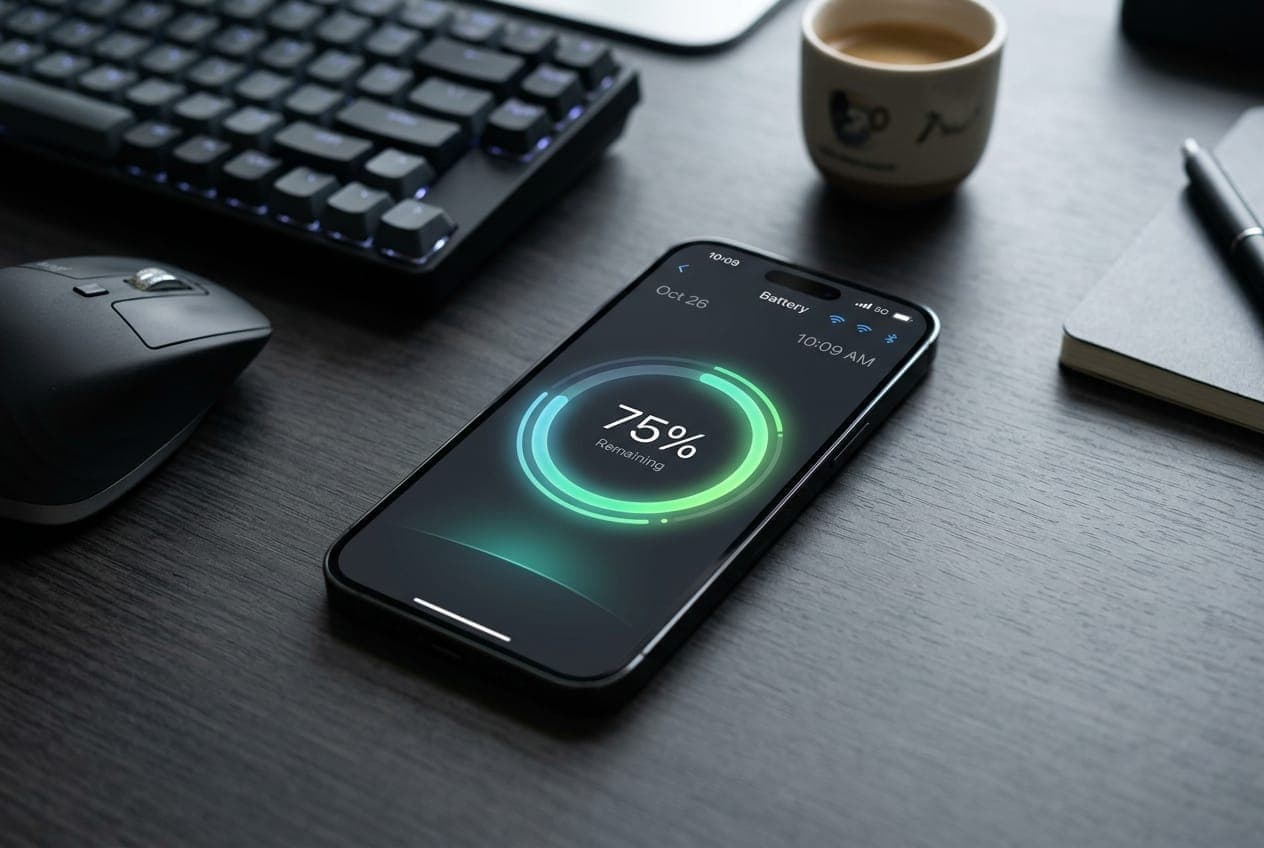
Adding widgets to your iPhone Home Screen or Lock Screen is a great way to monitor your daily goals at a glance. However, many users hesitate to add step trackers or fitness widgets out of a common concern: battery drain.
Since widgets display live data that changes throughout the day, it is natural to wonder if keeping a step counter on your screen will run down your iPhone's battery.
Here is the truth about how steps widgets impact your iPhone's battery life, why some apps drain more power than others, and how to track your steps efficiently.
1. How Widgets Update on iOS
To understand battery impact, it helps to understand how iOS handles widgets.
Home Screen and Lock Screen widgets do not run continuously in the background. Instead, iOS controls when they refresh. The operating system allocates a "budget" of updates to each widget, typically a few dozen refreshes per day, based on how often you view your phone, which apps you use, and the device's current battery level.
Because iOS manages these updates, a well-designed widget will never run down your battery by constantly refreshing in the background. This is also why a widget's step count can lag a few minutes behind the app: the trade-off is deliberate, and it is what keeps widgets essentially free from a battery perspective.
2. Why Some Pedometer Apps Drain Battery
While widgets themselves are optimized, the app behind the widget can sometimes be a power hog.
- GPS Tracking: Some step trackers run GPS in the background to map your walks. GPS is highly resource-intensive and is the primary reason standard fitness apps drain battery quickly.
- Constant Background Syncing: Apps that constantly try to upload your activity to online leaderboards or social feeds will keep your phone's wireless radios active, leading to faster battery drain.
If your step tracker does not need to map your route or sync with a social network, it shouldn't be using GPS or running constant web requests in the background.
3. The Low-Power Solution: Apple Health & Motion Coprocessors
Modern iPhones contain a dedicated hardware chip called a motion coprocessor. This chip is highly energy-efficient and collects sensor data (from the accelerometer and gyroscope) to count your steps automatically.
This tracking happens at the system level and uses virtually zero battery.
A battery-friendly steps widget will read data directly from the system's Apple Health database rather than running its own background motion tracking. Since Apple Health is already gathering this data automatically, the widget simply reads the current number and displays it on your screen, causing no measurable impact on battery life.
How to Check a Widget's Real Battery Cost
You do not have to take any app's word for it. iOS tracks per-app energy use, so you can verify the impact yourself after a few days of normal use.
Open Settings > Battery and scroll to the battery usage list, then switch to the last 10 days view. A well-behaved steps widget should sit at or near the bottom of the list, typically at 1 percent or less. If any step tracker shows meaningful background usage there, that is your sign it is running GPS or network syncing behind the scenes.
How Steps Widget Keeps Your Battery Healthy
Steps Widget was built from the ground up to be lightweight and battery-friendly. We do this by focusing on three main principles:
- No GPS Tracking: Steps Widget does not map your routes. It only tracks your step count, eliminating the major source of battery drain.
- Direct Apple Health Integration: The app requests permission to read steps from Apple Health. This means it uses the step data your iPhone has already gathered using its low-power coprocessor, requiring no additional battery power to count steps.
- Privacy-First Design: Since there are no social feeds, logins, or server syncing, Steps Widget doesn't drain your battery with constant background network requests. Your data stays on your device.
By choosing a step tracker widget that works with iOS's native health database and avoids resource-heavy features like GPS, you can keep your steps visible all day without worrying about your battery.
Recommended posts
Try Steps Widget
Keep your daily steps visible on iPhone, Lock Screen, Home Screen, and Apple Watch with a private Apple Health step counter widget.