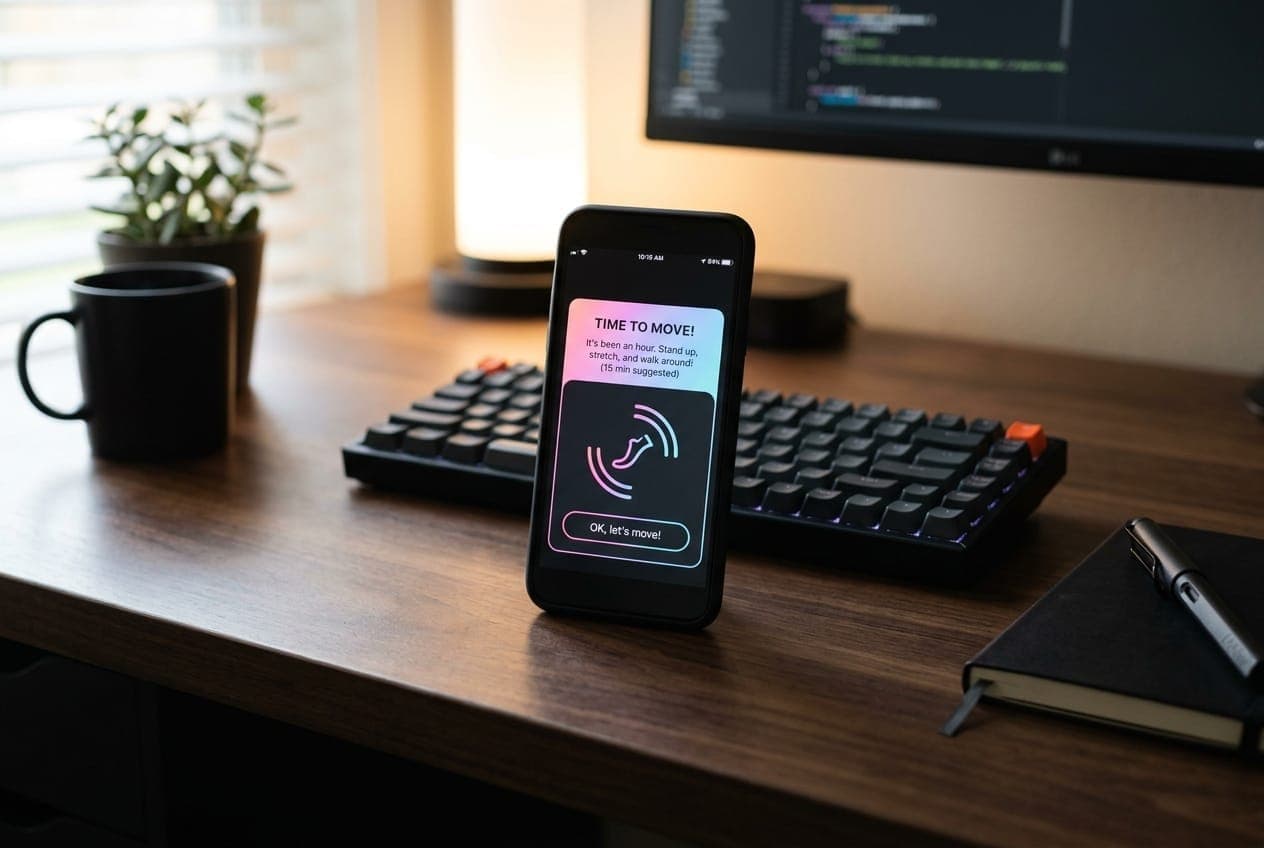
If you work a desk job, you know the hourly stand-up buzz. Your watch or phone taps you, tells you it is time to move, and you glance down mid-task or mid-meeting, swipe it away, and keep sitting. A week later you have turned the reminders off entirely.
That cycle of interruption and dismissal is exactly why standard stand-up alarms fail. They do not know what you are doing, so most of the time they fire at the wrong moment. Instead of building a habit, they build notification fatigue.
The fix is not more discipline. It is a smarter trigger. Moving from a rigid, time-based alarm to a smart, activity-aware move reminder is what makes the difference between a nudge you act on and one you learn to ignore. Here is why, and how to set one up on your iPhone.
Why rigid break timers stop working
Most standing-desk timers and wearable alerts run on what is essentially a dumb clock. They buzz every 50 or 60 minutes no matter what is happening in your day, which creates two problems that compound over time.
- They interrupt at the wrong moment. The reminder lands while you are in a flow state, writing, or on a call. That friction teaches your brain to treat the alert as an annoyance rather than an encouragement.
- They ignore movement you already did. Walk to the kitchen for water five minutes before the hour, and a rigid timer still buzzes at the top of the hour. Because the app has no idea you already moved, the nudge feels irrelevant, and irrelevant nudges are the ones you disable first.
The result is predictable. The alerts you dismiss most are the ones that were poorly timed, and once you are dismissing on reflex, even the well-timed ones stop working.
What makes a move reminder "smart"
A smart move reminder app solves this by checking your actual activity before it interrupts you. There are two common ways to do that.
- Inactivity detection. The app watches for a stretch with little or no movement, say 50 minutes, and nudges you when it finds one. Walk to the kitchen and the countdown resets.
- Goal forecasting. The app looks at your steps so far and where your day is heading, and only nudges you when you are on course to miss your daily step goal. If you are on track, it stays silent, however long you have been at your desk.
Either change fixes both failures of the dumb timer at once:
- Every nudge is relevant, because it is based on what you did rather than what the clock says.
- The nudges get rarer on active days, which is the whole point, and rarer nudges are the ones you keep paying attention to.
Steps Widget takes the second approach. A model on your iPhone, trained on your own Apple Health history, projects your end-of-day step count, and a reminder arrives only when that projection falls short of your goal. It tells you how many steps you need, while there is still time to take them. How goal reminders work explains the details.
Aim for movement, not just standing
Another common pitfall is optimizing for stand-up time rather than actual movement. Standing at a standing desk beats sitting, but to shift circulation and energy you need to take steps.
Setting a small hourly step goal is one of the most effective habits you can build. A common target is 250 steps each hour between 9:00 AM and 5:00 PM. It takes only two to three minutes of walking, and unlike the Apple Watch Stand ring, which a minute of standing satisfies, it can only be met by actually walking.
- It breaks a large daily target, like 10,000 steps, into small, achievable micro-goals.
- It stops you from trying to walk off a whole day of sitting in one long evening session.
- It spreads brief walking breaks across the day, which research links to steadier energy, better focus, and less stiffness than a single long walk after hours of sitting.
Design a distraction-free walking habit
To make movement alerts stick, tune them to your real workday instead of a generic default.
- Keep reminders to sensible hours. A move alert is only useful when you can act on it. Timer apps let you set active hours; a forecast-based reminder can only get specific once enough of your day is on record, which is why Steps Widget only sends reminders between 11 AM and 11 PM on a default setup, shifted if you move your start of day.
- Pair alerts with quiet visual cues. Back up push notifications with zero-click widgets on your iPhone Home Screen or Lock Screen. A glance at a clean progress ring tells you whether you are on pace for the hour without opening anything.
- Give the nudge a simple job. When the reminder fires, have one easy default: refill your water bottle, do a lap of the room, or a standing stretch. A specific action is far easier to follow than "move more."
- Keep the nudge on your wrist. If your iPhone is across the room, an Apple Watch reminder still reaches you at your desk, so the habit does not depend on where your phone is.
Pro Tip: If your reminders still feel too frequent, check the goal before anything else. With a forecast-based reminder, a goal you rarely reach on an ordinary day produces a steady stream of nudges; set it to something you hit most days and the reminders become rarer and more meaningful. See how to set a realistic daily step goal.
Active progress with Steps Widget
The best habit tools support you quietly in the background instead of demanding your attention.
Steps Widget gives you free, private goal reminders built on your Apple Health data. They only fire when your day is heading for a miss, at most once an hour, and between nudges your progress stays a glance away on your Home Screen, Lock Screen, and Apple Watch. There is no account, no social feed, and no GPS tracking. The forecasting model runs and retrains on your iPhone.
Download Steps Widget from the App Store, set a daily goal you can actually hit, and let the reminders handle the timing so you do not have to.
Key Takeaways
Rigid hourly stand-up alarms fail because they ignore what you are doing; activity-aware reminders that read your step count only nudge you when a walk would make a difference.
| Point | Details |
|---|---|
| Why dumb timers fail | Fixed-interval alarms interrupt flow and ignore movement you already did, which trains you to dismiss them. |
| What makes a nudge smart | It checks your Apple Health step count first and stays silent when you have already moved or are on track. |
| Movement over standing | Aim for a small hourly step goal, around 250 steps, rather than just standing time. |
| Tune it to your day | Set a goal you can hit and pair each nudge with a simple, specific action. |
| Steps Widget by Crazylazy | Goal reminders from an on-device forecast, plus private widgets across iPhone and Apple Watch. |
New to this? Start with does the iPhone have a stand up reminder, which explains why you need an app in the first place. Then see the best stand up reminder apps for iPhone for how the main options differ, or Steps Widget vs Pedometer++ if you are weighing a dedicated step tracker instead.
Recommended posts
Try Steps Widget
Keep your daily steps visible on iPhone, Lock Screen, Home Screen, and Apple Watch with a private Apple Health step counter widget.