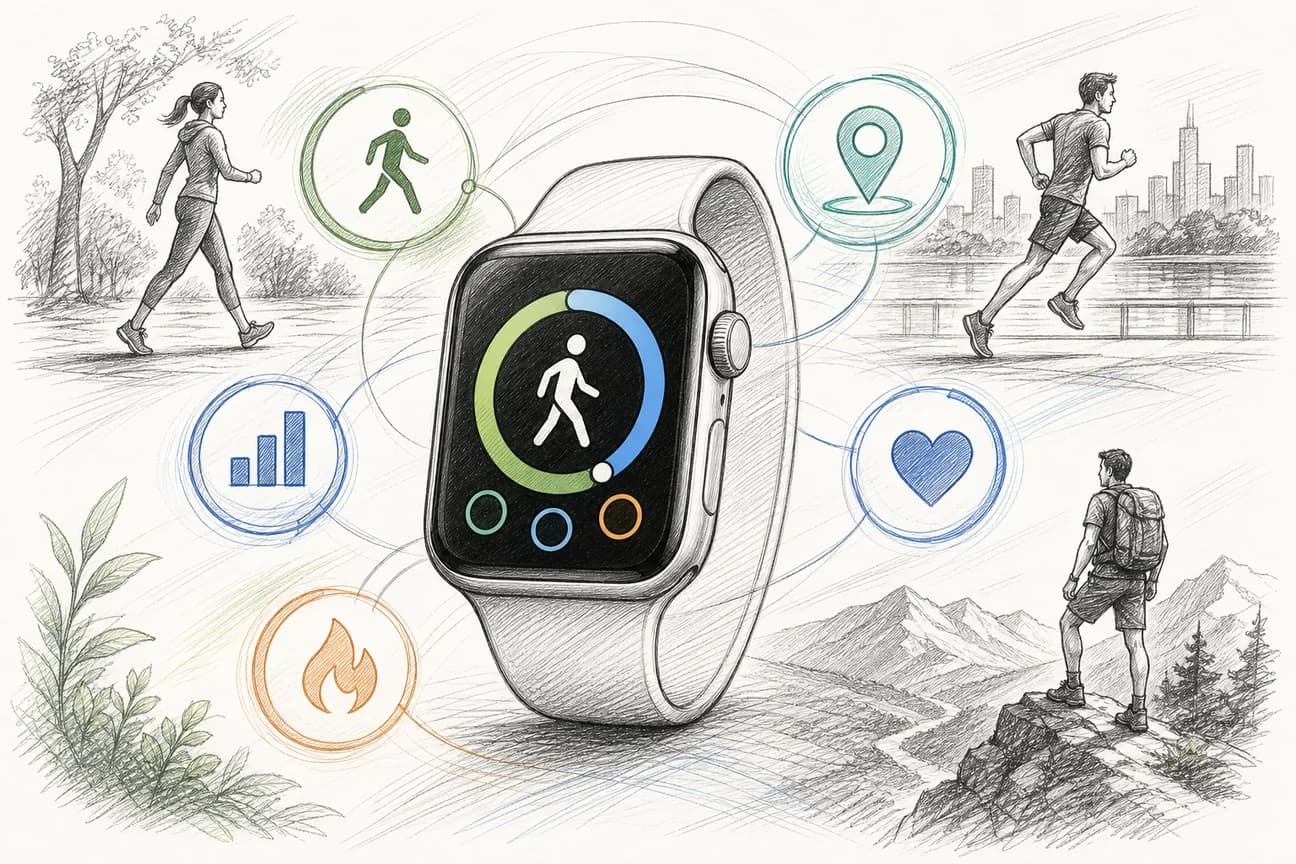
Want your step count right on your wrist? The best Apple Watch step count on a watch face comes from an app with a complication that fits your face and your routine. Here are six options, starting with Steps Widget, plus the setup details that help the number show up.
We analyzed 49 comments from YouTube and Reddit about displaying step count on Apple Watch faces and found that 35% mentioned lack of a built-in step-count display.
1. Steps Widget — glanceable progress with personalised reminders
Steps Widget is a step-tracking app for iPhone and Apple Watch. It reads your steps from Apple Health, needs no account, and uses an on-device model to predict whether you’re likely to reach your walking goal. If the day is falling behind, it can send a personalised reminder rather than relying on a fixed hourly prompt.
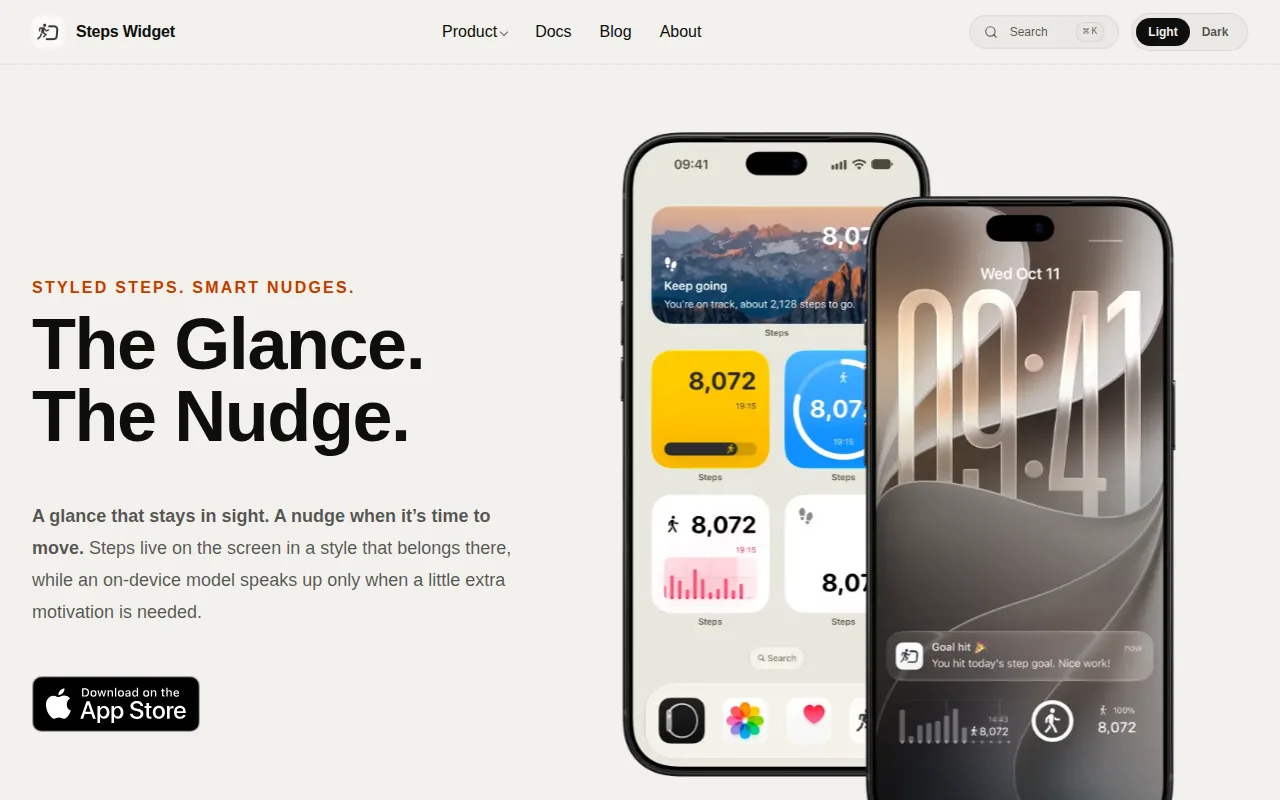
It suits you if you want the glance and the nudge in one place. Steps Widget has an Apple Watch complication, along with Home Screen and Lock Screen widgets. Its Apple Watch app can show your count as you go; iPhone widgets may refresh on iOS’s schedule rather than the instant you take a step.
You can set a day boundary up to six hours past midnight or use a rolling 24-hour window. That can make a step goal fit a night shift better than a calendar day does. Local Sunset is another reminder timing option, while the Insights view lets you compare your recent days against a draggable goal line.
Steps Widget reads Apple Health data locally and requires no account. Default widget styles and goal reminders are free. The style editor and photo styles need a subscription, so you can try the basic glance and reminder before paying to change the look.
If you’re setting up the complication for the first time, this walkthrough for adding steps to an Apple Watch face explains the face editor and complication slots. That setup is similar across apps, though the names and styles vary.
2. StepMelon: a simple step-count complication
StepMelon is a step counter with Apple Watch complications and an iPhone widget. It suits you if you want to see a step total on your watch face and set more than one goal for the day.
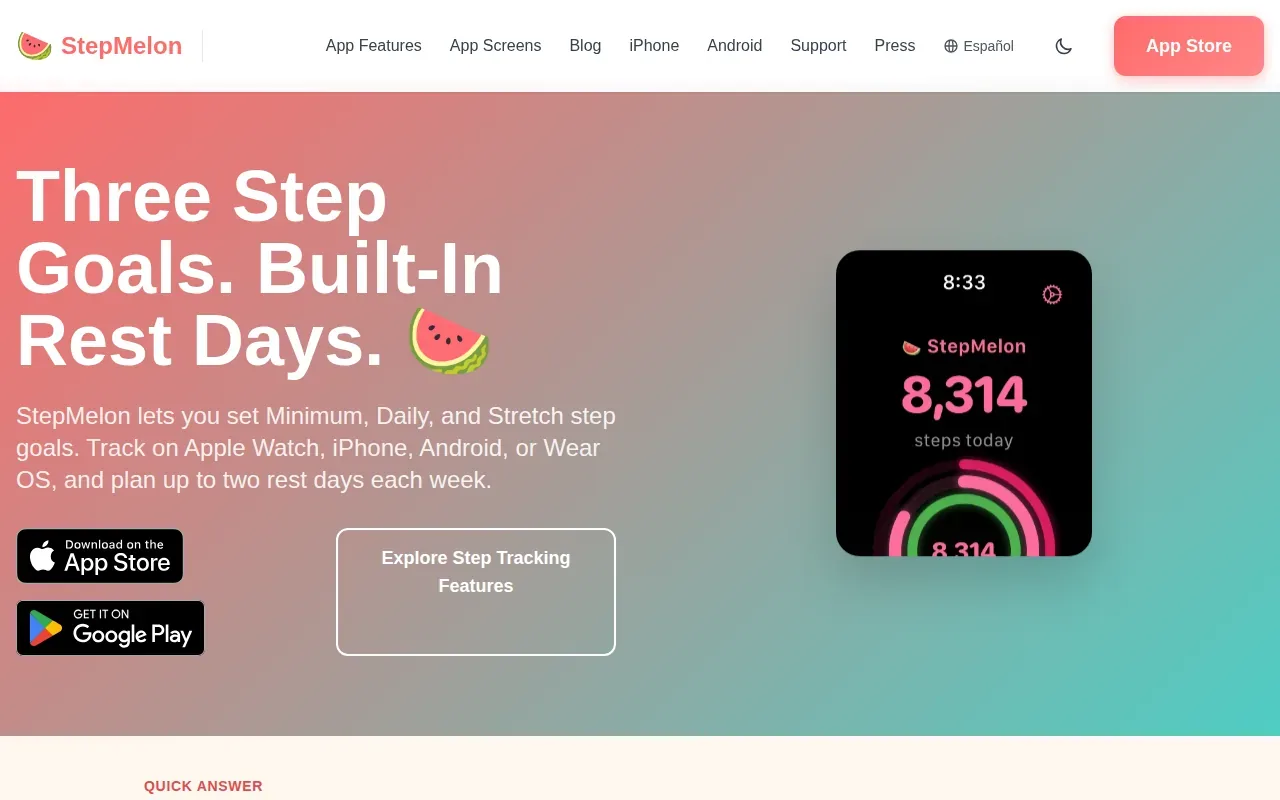
Its three goal levels are Minimum, Daily and Stretch. That gives you room to set a lower target for a busy or tiring day, then keep a higher goal for days when you have more time to walk. You can also plan up to two rest days each week.
The app uses a watermelon theme with four intensity levels. Light, dark and system themes sync across devices. Layout customisation is a Premium feature, as are gentle reminders when you’re behind on a goal. So if a personalised nudge is a must, check that subscription boundary before you settle on StepMelon.
Apple Watch complications put the count on your wrist, while the iPhone widget gives you another place to check it. StepMelon also tracks distance and floors climbed alongside steps. Its detailed fitness history stays on your devices; if you choose its Social features, it syncs the data needed for the friends or private groups you select.
For a simple glance, the complication is the main draw. For a more tailored look or a reminder, compare the included features with your needs before upgrading.
3. Pedometer++: step counts across watch face and iPhone widgets
Pedometer++ is a step counter for Apple Watch and iPhone. It suits you if you want your count on a watch face and in iPhone widgets.
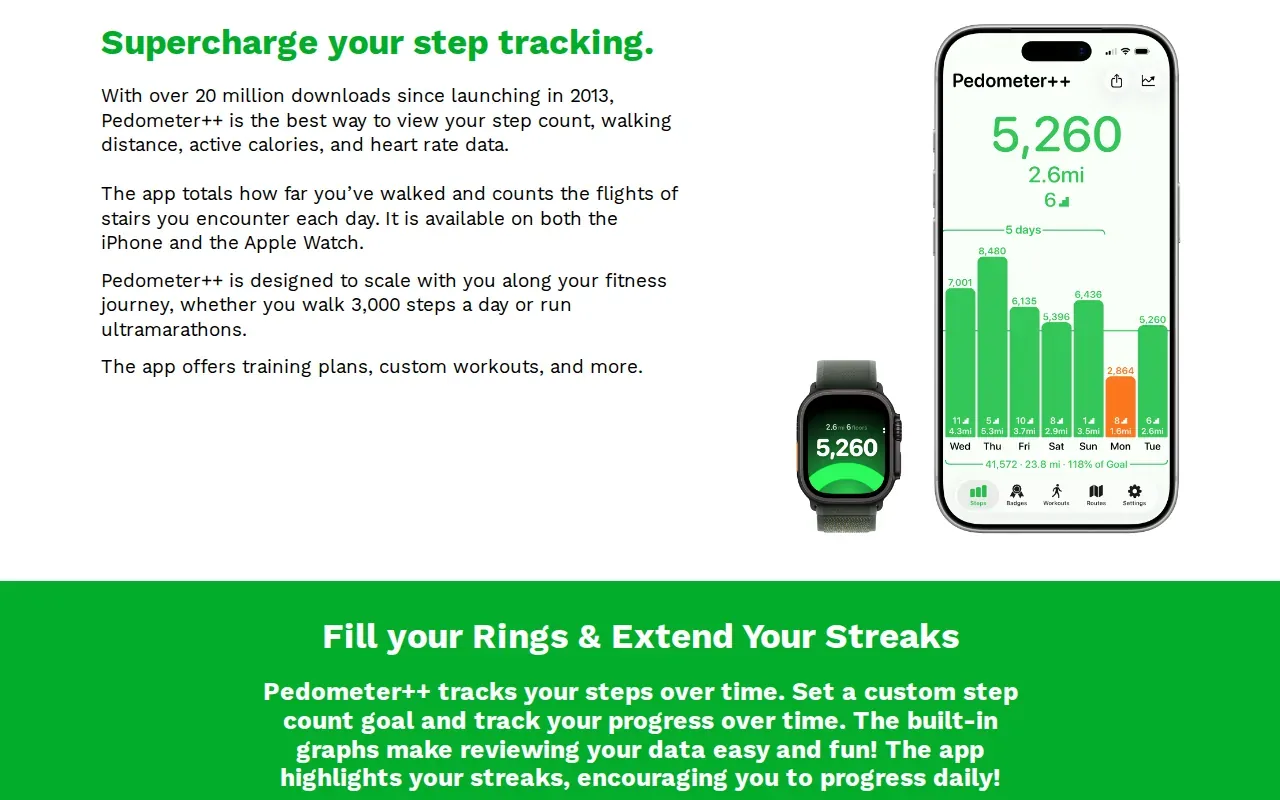
Its display options include an Apple Watch complication, a Lock Screen widget and a Home Screen widget. Pedometer++ promises full-featured widget support for your step count on the Lock Screen and Home Screen.
There’s a useful distinction between the watch face and the app itself. A complication gives you the count at a glance; opening the app gives you more room to check your activity. If the face you like has only a small slot, choose a simple step-count display. A larger slot can make a progress view easier to read.
When you first open a pedometer app, review the permission prompt and allow access to the step data it needs. If access is off, the app may not have the step count to show.
For a useful daily routine, decide where you’ll check your count most often: your wrist while moving, or your iPhone when it’s nearby. These two placements cover both habits.
Ready to keep your steps visible and get a gentle nudge when your day is slipping behind?
4. HealthFace by Crunchy Bagel: flexible Apple Health data on your face
HealthFace by Crunchy Bagel turns Apple Health data into watch complications and iPhone widgets. It suits you if you want steps on your face but may also want other health readings there.
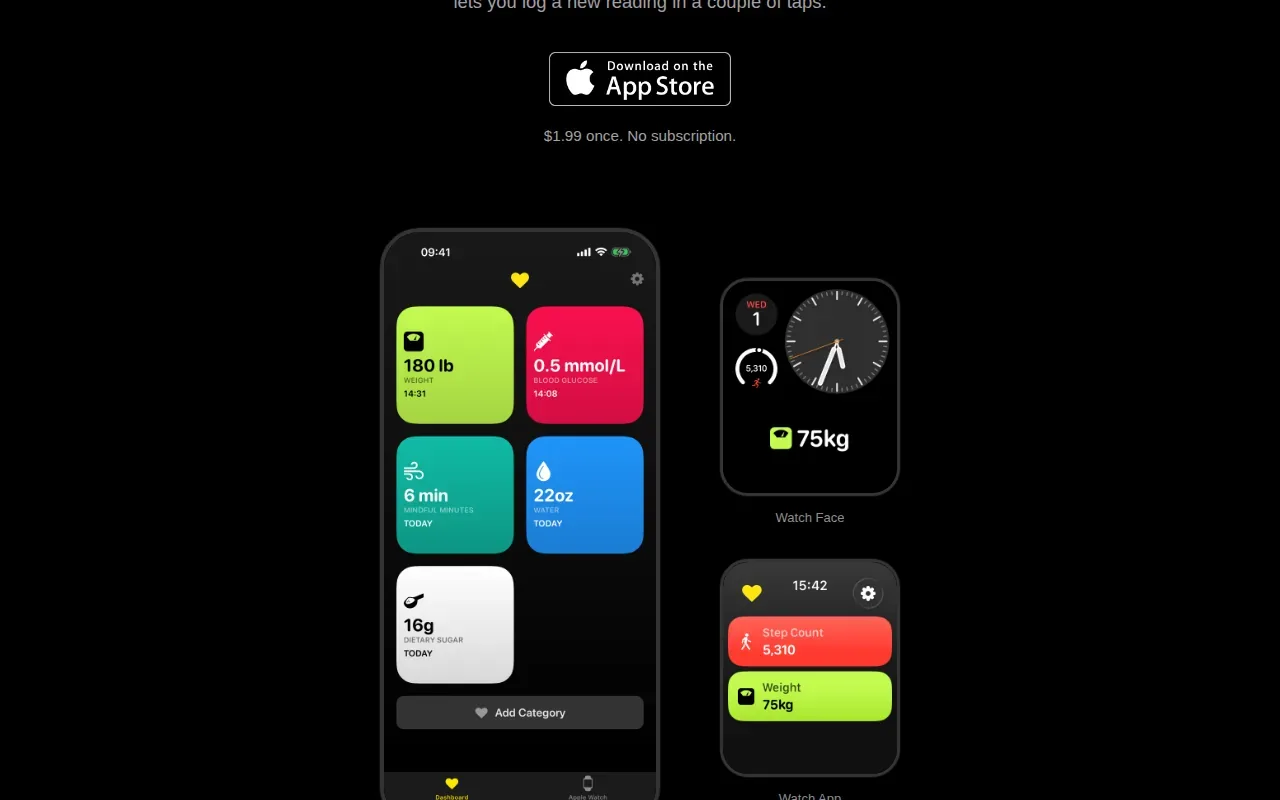
HealthFace covers more than 100 data types, including weight, water, caffeine and sleep. You can show multiple data types on one watch face, or show progress toward a goal. Its iPhone and iPad apps also let you preview complications before saving them to your watch.
That flexibility can help if your watch face has space for more than a step count. For example, you might show steps beside another reading you already track in Apple Health. You can also tap a complication to log a new reading from your wrist, which is a different use from a dedicated pedometer display.
HealthFace says its health data stays on your devices and is never sent elsewhere. It does need permission to access Apple Health. For more on the source data behind an everyday step count, Steps Widget’s guide to viewing and tracking Apple Watch steps explains where Apple records the number.
Choose HealthFace when the wider set of health readings matters as much as the steps. If you only want a clean step count and a reminder, a more focused app may suit you better.
5. StepsApp: a step counter with streaks and social features
StepsApp is a step counter by StepsApp GmbH with Apple Watch complications and iPhone widgets. It suits you if you like to see progress over time or want walking to feel social.

Its watch complications can show daily steps and progress, a streak, a step goal gauge, or steps alongside distance. The app also has Home Screen and Lock Screen widgets. On the watch, you can swipe through daily steps, a weekly view and a monthly summary.
Streaks, friend challenges and leaderboards are part of its motivation style. That may be a good fit if a shared goal helps you keep walking. If you’d rather track quietly without comparing results, the social features may be more than you need.
StepsApp also supports Apple Health and tracks trends, records and analytics. Some features, including advanced analytics and premium customisation, require a paid subscription. Its complications give you a quick count; the larger app is where you can look at broader activity history.
If progress bars or streaks help you notice a habit, StepsApp puts those cues close at hand. Pick the complication that shows the detail you’ll actually use, rather than filling every slot.
6. Stepz: automatic background step tracking
Stepz is a pedometer for iPhone and Apple Watch that tracks steps automatically in the background. It suits you if you want a straightforward counter that uses motion data without GPS.
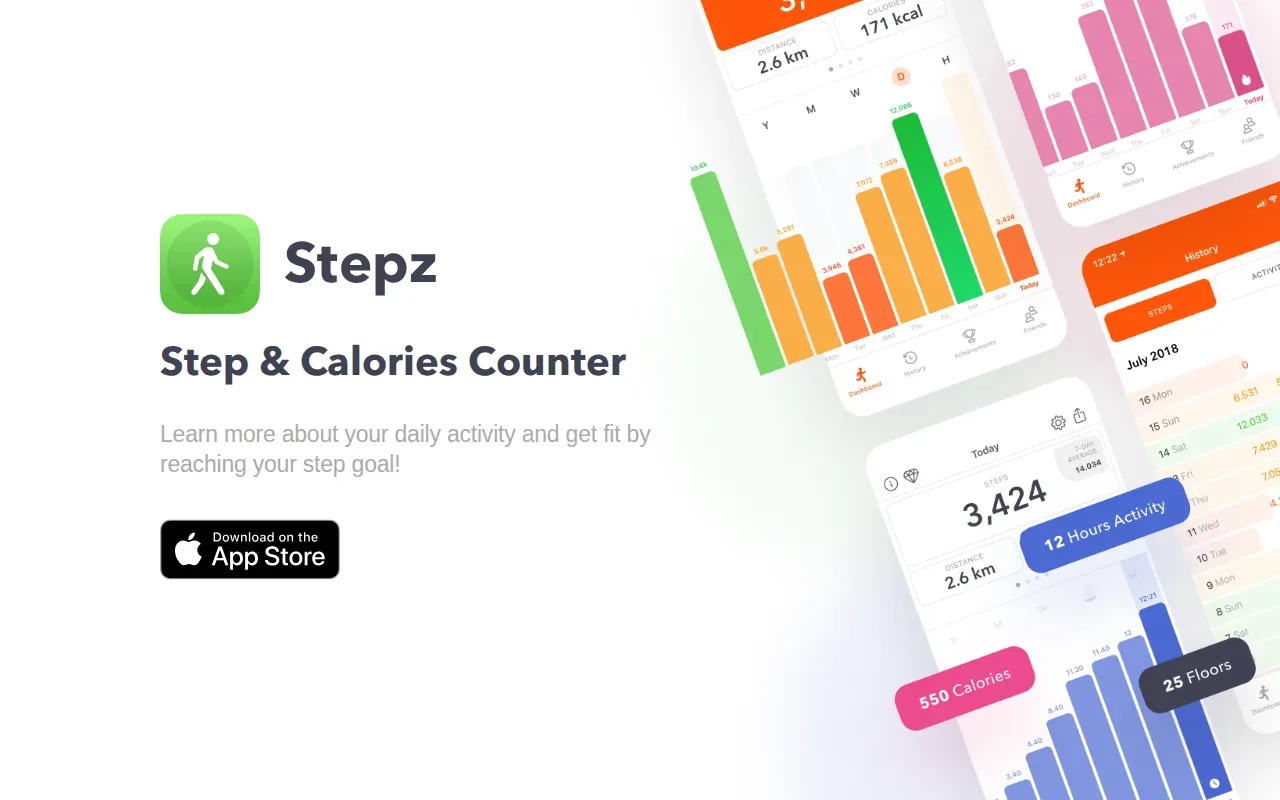
Stepz says it uses Apple’s Motion Coprocessor to collect motion data while saving battery life. You can review hourly, daily, weekly, monthly and yearly step values.
The app says personal fitness data stays on your device and isn’t shared over a network without your consent. That gives privacy-conscious users a clear statement to weigh alongside the features. Stepz also includes an Apple Watch app with data syncing.
Use the table to match its strengths to the kind of step routine you want:
| Your priority | What Stepz provides | What to keep in mind |
|---|---|---|
| Automatic tracking | Background step collection using the Apple Motion Coprocessor | It uses motion data, not GPS |
| More than today’s total | Hourly, daily, weekly, monthly and yearly step values | Choose a view that helps you check your own pattern |
| Check progress on your wrist | An Apple Watch app with data syncing | Confirm the app’s available complication in your watch face editor |
Stepz is a reasonable fit if background tracking and longer step history matter more than a reminder system. If a complication is the main goal, check the available options in the face editor after installing the app.
Frequently Asked Questions
Does Apple Watch have a built-in step-count complication?
Many Apple Watch setups don’t include a native step-count complication, so a third-party app is often needed to put the number on the face. Some newer watchOS and device combinations may show a native Steps option. Check your complication picker first. If you don’t see one, install a pedometer app and grant it access to Apple Health.
How do I add a step counter to my Apple Watch face?
Install a step-count app on your iPhone, then use the Watch app on iPhone or the App Store on your watch to install its watch app. Open it and allow the Apple Health access it needs. Next, press and hold a compatible watch face, tap Edit, choose a complication slot, select the app’s step display, then save the face.
Why aren’t my steps showing on my watch face?
First check that the app is installed on your Apple Watch and has permission to read steps in Apple Health. Then check that your chosen face supports the complication style you selected. Open the app on the watch once and give it time to sync. If the slot still looks empty, try another supported face or complication size.
Can I see Apple Watch steps without a third-party app?
Yes. Open the Activity app on your watch and scroll down to see your steps. You can also check your step history in the Health app on iPhone. Apple’s built-in Activity complication may show activity rings or another supported metric, but it may not show a raw step total on your face.
Which app is best if I work night shifts?
Steps Widget is a useful fit if your activity day doesn’t end at midnight. It lets you move the day boundary up to six hours past midnight or use a rolling 24-hour window. It also reads Apple Health data locally, needs no account and uses an on-device model to predict whether you’re likely to reach your goal before sending a reminder.
Conclusion
If you want a step count with a quiet, personalised reminder, start with Steps Widget. It keeps the count visible across your Apple Watch and iPhone while letting your activity day fit your routine. Install it, allow Apple Health access, then add its complication to a face you already like.