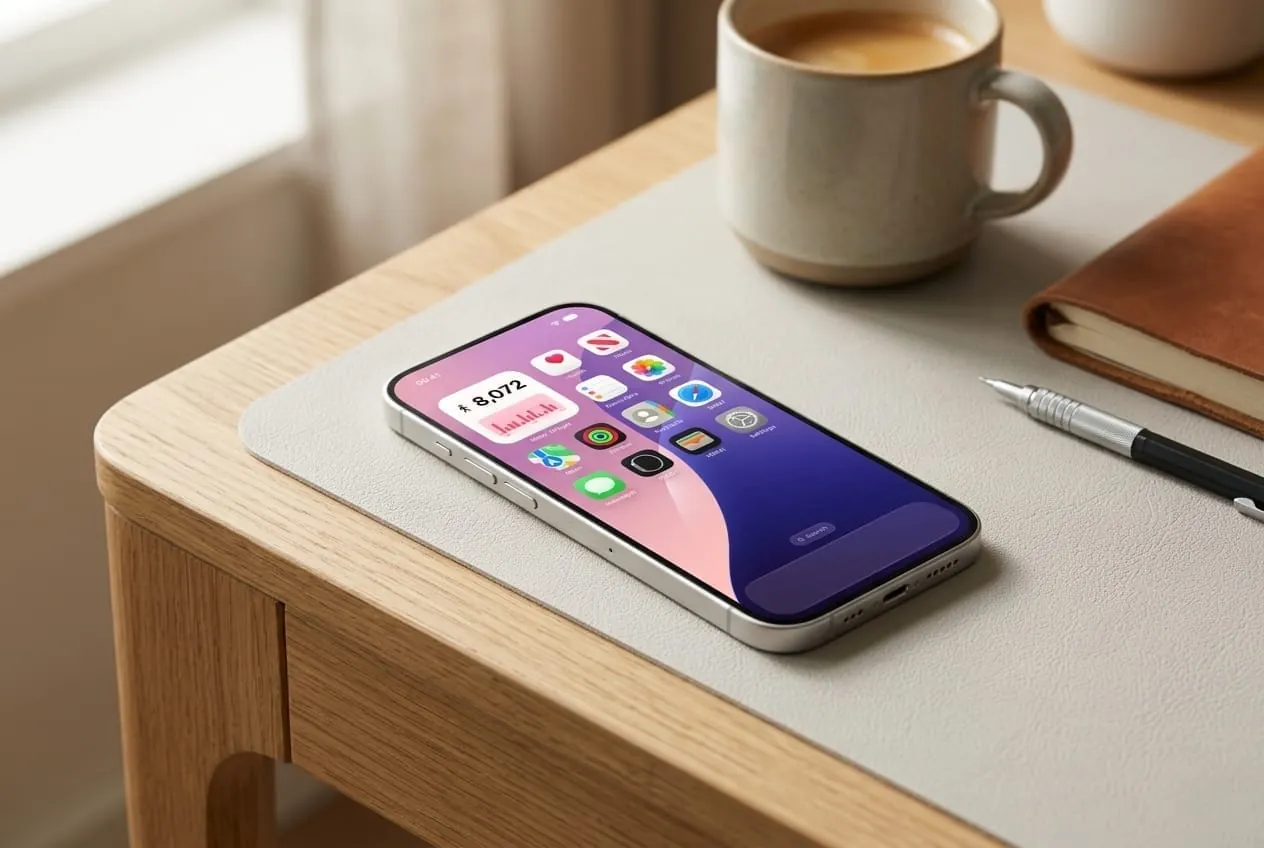
Apple released iOS 27 to everyone on September 14, 2026, after two months of public beta. It runs on every iPhone that ran iOS 26, from the iPhone 11 and the second-generation iPhone SE onward, so if your phone got last year's update, it gets this one too.
This guide covers what is new, which features your iPhone will actually get, how to update without risking your Health history, and what to check afterwards if your step count or widgets look wrong.
What is new in iOS 27
The headline is Siri AI, a rebuilt assistant with its own app, text input, conversation history, follow-up questions, and more access to your personal context. Around it:
- Refined Liquid Glass. More even refraction, better contrast, sharper app icons, and a slider to set how transparent the interface looks.
- Faster everyday performance. Apple quotes app launches up to 30% faster, Photos libraries loading up to 70% faster, and AirDrop up to 80% faster.
- Visual Intelligence in Camera, as a dedicated Siri mode.
- Photos and image tools, including Extend and Reframe edits and photorealistic images in Image Playground.
- Shortcuts you describe out loud instead of building step by step.
- iPhone Handoff, which lets two iPhones share one phone number, where your carrier supports it.
Which iPhones get which features
The update itself reaches the iPhone 11 and newer. Siri AI and the other Apple Intelligence features need an iPhone 15 Pro or newer. At launch, Siri AI is English-only, has daily usage limits, and is not yet available in the EU.
So on an iPhone 12 or 14, iOS 27 is mostly the design refresh and the speed improvements. That is still worth having, but it is not the update the headlines describe.
Should you update now?
For most people, yes, within the first couple of weeks. Here is how to decide.
- Update now if you want Siri AI on a supported iPhone, or if you ran the public beta. Beta testers should move to the release build, then switch off Beta Updates in Software Update so you stop receiving next year's betas.
- Wait for the first point release (27.0.1 or 27.1) if your iPhone is your only phone and you depend on it for work. Early bugs get fixed quickly, and a week or two costs you nothing.
- Do not wait indefinitely. iOS 27 also carries security fixes, and apps gradually drop support for older versions.
Update without risking your Health data
A normal update keeps everything in place, including your Apple Health step history. The risk only appears if you change your mind afterwards.
Health data lives in a database that iOS upgrades to a new format during the update. Backups made on iOS 27 cannot be restored to iOS 26. Going back means erasing the iPhone and restoring your last iOS 26 backup, which loses every step recorded since you updated. And Apple usually stops allowing the downgrade altogether a couple of weeks after a release.
So before you tap install:
- Back up to iCloud or to a Mac or PC. If you use a computer, choose an encrypted backup; unencrypted backups leave out Health data.
- Turn on Health in iCloud under Settings › [your name] › iCloud, so your history is also stored in iCloud.
- Update over Wi-Fi with the phone charging: Settings › General › Software Update.
Do step widgets work on iOS 27?
Yes. Widgets built on Apple's WidgetKit framework, including Steps Widget, carry over to iOS 27 on the Home Screen, Lock Screen, StandBy, and Apple Watch. Step counting is done by your iPhone's motion coprocessor and Apple Health, and the update does not change either.
If something looks wrong in the first day or two:
- Widget shows zero or a stale count. Open the app once, which asks iOS for a fresh widget update. Then check that step access is still on in Health › Profile › Privacy › Apps. More in steps widget not updating.
- The widget looks different. The refined Liquid Glass and the new transparency slider change how clear and tinted widgets render. Try your wallpaper's tint again, or pick a different style. See widget styles.
- Step count seems low. Make sure Settings › Privacy & Security › Motion & Fitness › Fitness Tracking is still on. The full checklist is in why is my iPhone not counting steps.
- Reminders went quiet. Confirm notifications are still allowed for the app, and that a new Focus setup is not silencing it. See reminders not arriving.
If you have an Apple Watch, update it to watchOS 27 as well. Mismatched versions are a common cause of late notifications and delayed step syncing.
The short version
iOS 27 is a safe, worthwhile update for nearly every iPhone. The biggest features need an iPhone 15 Pro or newer, and everyone gets the redesign and the speed. Back up first, and remember that once you are on iOS 27, going back is hard and gets harder after a couple of weeks.
Your step history and widgets come with you. Steps Widget keeps your Apple Health step count on your Home Screen, Lock Screen, StandBy, and Apple Watch on iOS 27, and its goal reminders only nudge you when your day is heading short of your goal. Not sure which widget to use? Start with how to show steps on your iPhone Lock Screen.
Recommended posts
Try Steps Widget
Keep your daily steps visible on iPhone, Lock Screen, Home Screen, and Apple Watch with a private Apple Health step counter widget.